
Key takeaways
- The best Blender add-ons solve tasks you perform repeatedly rather than simply adding more features.
- Blender add-ons, plugins, and extensions are often used as interchangeable terms, although Blender now uses Extensions as its official system for distributing and installing add-ons and themes.
- Free Blender add-ons can cover many modeling, retopology, animation, and workflow needs.
- Paid add-ons make the most sense when they remove enough repetitive work to justify their cost.
- Check Blender version compatibility, dependencies, and developer support before relying on an add-on in production.
- For larger projects, also consider whether an add-on affects simulations, external assets, or rendering on other machines.
- A smaller collection of dependable tools is usually easier to manage than dozens of overlapping add-ons.
TL;DR
The best Blender add-ons are the ones that fit your projects, support your current Blender version, and reduce work you regularly perform by hand. Some improve broad areas such as modeling and animation, while others solve specific problems like UV packing, facial rigging, environment creation, or fluid simulation.
This list covers useful Blender plugins and extensions for different workflows, including free and paid options. Before installing one, consider how frequently you will use it, whether Blender already has a suitable native tool, and whether the time saved is worth adding another dependency to your workflow.
What are Blender plugins and add-ons?
Blender add-ons extend the software with extra tools, automated processes, asset libraries, and specialized workflows. Some focus on a single task, such as packing UV islands, while others introduce larger systems for character animation, hard surface modeling, environment creation, or simulation.
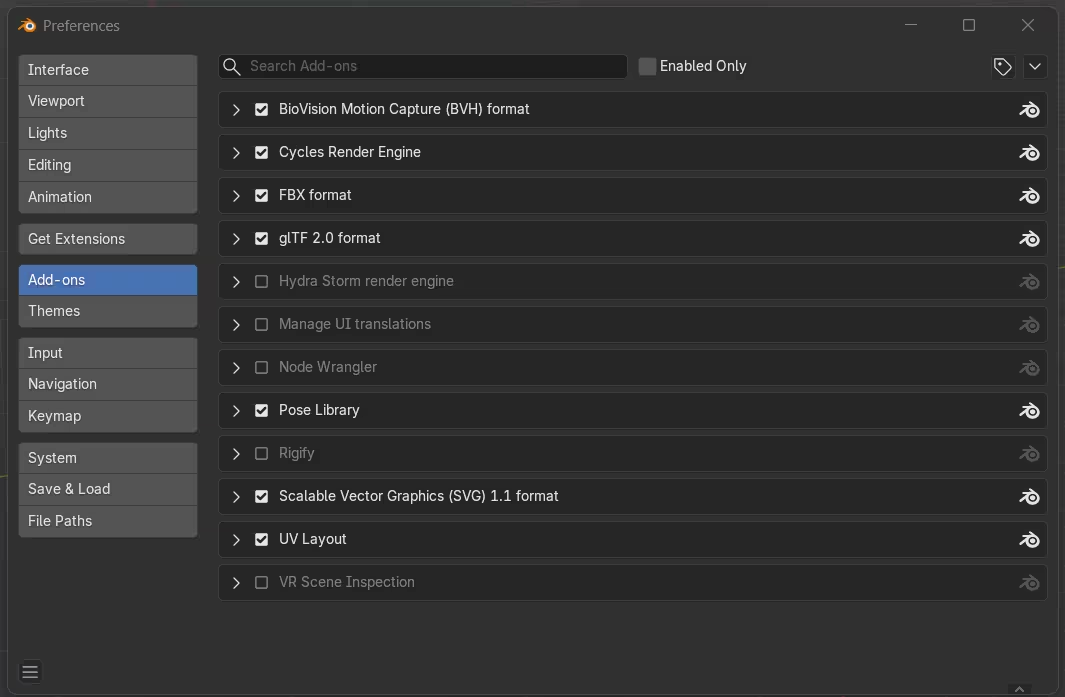
Blender plugins is also a common term used by artists searching for these tools, even though Blender generally refers to them as add-ons.
They can make Blender faster and more convenient, but they are most useful when they address a real limitation in your workflow. Installing tools without a clear purpose can create clutter, overlapping features, shortcut conflicts, and more settings to maintain.
Blender add-ons vs extensions: what's the difference?
Blender's terminology has changed as its extension system has developed. Since Blender 4.2, Extensions have become the main system for distributing and installing add-ons and themes.
An add-on is functionality that extends Blender, usually with additional tools or workflow features. An extension is the package and distribution system Blender now uses for add-ons and themes. Meanwhile, plugin remains a commonly used general term among Blender users.
So when someone searches for the best Blender extensions, Blender plugins, or Blender add-ons, they are often looking for largely the same thing: tools that expand what Blender can do.
Older add-ons can still use Blender's legacy installation method, so always check how a tool is distributed and which Blender versions it supports before installing it.
How to choose the best Blender add-ons
Start by checking whether the add-on supports the Blender version you currently use. Blender changes regularly, and older tools may lose features or stop working after a major update. It is also worth checking whether the developer still maintains the add-on, especially if you plan to depend on it throughout a long project.
Next, ask whether the tool solves something you actually do often.
A modeling add-on that saves three clicks on a task you perform hundreds of times can have more production value than a much larger toolset you only open twice a year. The same applies to Blender animation add-ons, rigging tools, UV plugins, and environment generators.
Also consider whether Blender already handles the task well enough. Native tools continue to improve, and an add-on does not automatically make a workflow faster if you have to spend more time managing it.
Finally, identify the actual bottleneck. If most of your time is spent waiting for complex scenes or animations to finish rendering, using a Blender render farm may improve turnaround more than adding another modeling or animation tool.
There is another consideration once a project starts moving between computers. Some add-ons simply help create geometry that remains usable after the tool has done its job. Others introduce simulations, external assets, custom data, or systems that may need to exist wherever the project is opened or rendered.
That matters in production. In our Blender rendering workflow, we support many plugins and add-ons, but we ask artists using additional tools to let us know so compatibility can be checked. Simulations may also need to be cached and correctly linked before a scene is sent elsewhere. Our Blender rendering guide covers these scene preparation considerations in more detail.
Best Blender add-ons for hard surface modeling
Hard Ops
Hard Ops is a broad toolkit for hard surface modeling. It speeds up common operations involving modifiers, Booleans, bevels, and mechanical forms, making it especially useful for artists who regularly create technical objects, machinery, or science fiction assets.
The add-on is best suited to users who already understand Blender modeling basics and want to complete familiar operations more quickly rather than replace the underlying modeling skills.
If hard surface modeling and cutting are a major part of your work, we have a separate comparison of Blender add-ons for faster cutting workflows, including Hard Ops, BoxCutter, Fluent, MACHIN3tools, and Blender's native cutting tools.
Random Flow
Random Flow generates panels, cuts, and surface details across selected geometry. It is useful for quickly exploring mechanical shapes and layered science fiction designs without placing every detail manually.
Its procedural approach makes it easy to create variations quickly, which can be particularly useful during concept development. The tradeoff is that generated detail still needs artistic direction. More geometry does not automatically make a model better, and procedural results often benefit from cleanup or simplification before the asset moves further through production.
Normal Magic
Normal Magic provides tools for smoothing, transferring, and bending normals so reflections move more cleanly across a surface.
This can save time when a model looks correct in silhouette but still has visible shading seams or unexpected highlights. For product visualization and hard surface work, fixing the normals can sometimes improve the final appearance without adding more geometry.
Best Blender add-ons for retopology and UVs
RetopoFlow
RetopoFlow provides dedicated tools for rebuilding clean topology over a detailed model. It is designed to make drawing new faces, loops, and patches more comfortable than relying only on Blender's standard modeling tools.
It is particularly useful for characters, creatures, scanned models, and sculpted assets that need cleaner geometry before rigging or animation.
Retopology is a much larger subject than choosing an add-on, so artists working through that stage of production can also see our complete retopology guide, which covers manual and automatic approaches, Blender tools, topology requirements, and optimization.
Polyquilt
PolyQuilt is a free Blender add-on for manual retopology. It lets artists draw quads, adjust vertices, and build a cleaner mesh directly over an existing model.
Its focused toolset makes it a practical starting point for artists who need a lighter retopology workflow without immediately purchasing a larger package. It is also a good example of why free Blender add-ons should not automatically be treated as less useful than paid alternatives. A focused free tool may be all you need if the task is occasional or narrowly defined.
UV Packer
UV Packer arranges UV islands automatically and provides additional controls for improving how available texture space is used. It can reduce the time spent manually moving, rotating, and arranging islands after an unwrap.
This type of Blender UV plugin becomes particularly useful when a project contains many UV islands or multiple objects that need consistent layouts. On a simple asset, manual packing may be perfectly adequate. Across dozens or hundreds of assets, the time saved becomes much easier to justify.
Best Blender add-ons for rigging and animation
Blender animation add-ons can remove a considerable amount of repetitive setup, particularly when a project involves multiple characters, reusable motion, facial animation, or frequent revisions.
Auto Rig Pro
Auto Rig Pro helps artists place and generate character rigs while also providing tools for animation retargeting and export. It can simplify the initial setup while still supporting more advanced production requirements.
It is especially useful for artists who work with several characters, transfer motion between rigs, or prepare animation for external software.
We have also used Auto Rig Pro in a practical workflow for combining and refining motion-capture animation. Our tutorial on refining motion capture with Mixamo and Blender Auto Rig Pro goes deeper into retargeting and working with Blender's NLA tools.
Faceit
Faceit focuses on facial rigging and animation. It helps artists create controllers, drivers, shape keys, custom expressions, and setups for facial performance capture.
Facial rigs can take considerable time to build by hand, so an add-on like this makes the most sense when expressive dialogue or repeated character performances are important to the project.
For a character that barely moves its face, the setup may be unnecessary. For dozens of dialogue shots, reducing repeated facial-rigging work can have a much larger effect on production time.
Animation Layers
Animation Layers allows separate actions to be stacked and edited without immediately combining them.
An animator could keep a walk cycle on one layer while adjusting a head turn or arm movement on another. Layers can then be blended, muted, merged, and baked when the animation is ready.
This makes the add-on useful when animation is expected to change. Instead of repeatedly altering the original action, artists can keep corrections and variations separate until the motion is approved.
Best Blender add-ons for environments
Engon
Engon is an open-source asset browser that can search and organize local asset packs. It includes filters, tags, snapping, scattering, and options for bringing assets into a scene as linked or editable objects.
It can be particularly useful for artists who already have large asset collections. At that point, the bottleneck often stops being asset creation and becomes finding, placing, and managing the assets you already own.
AnyTree
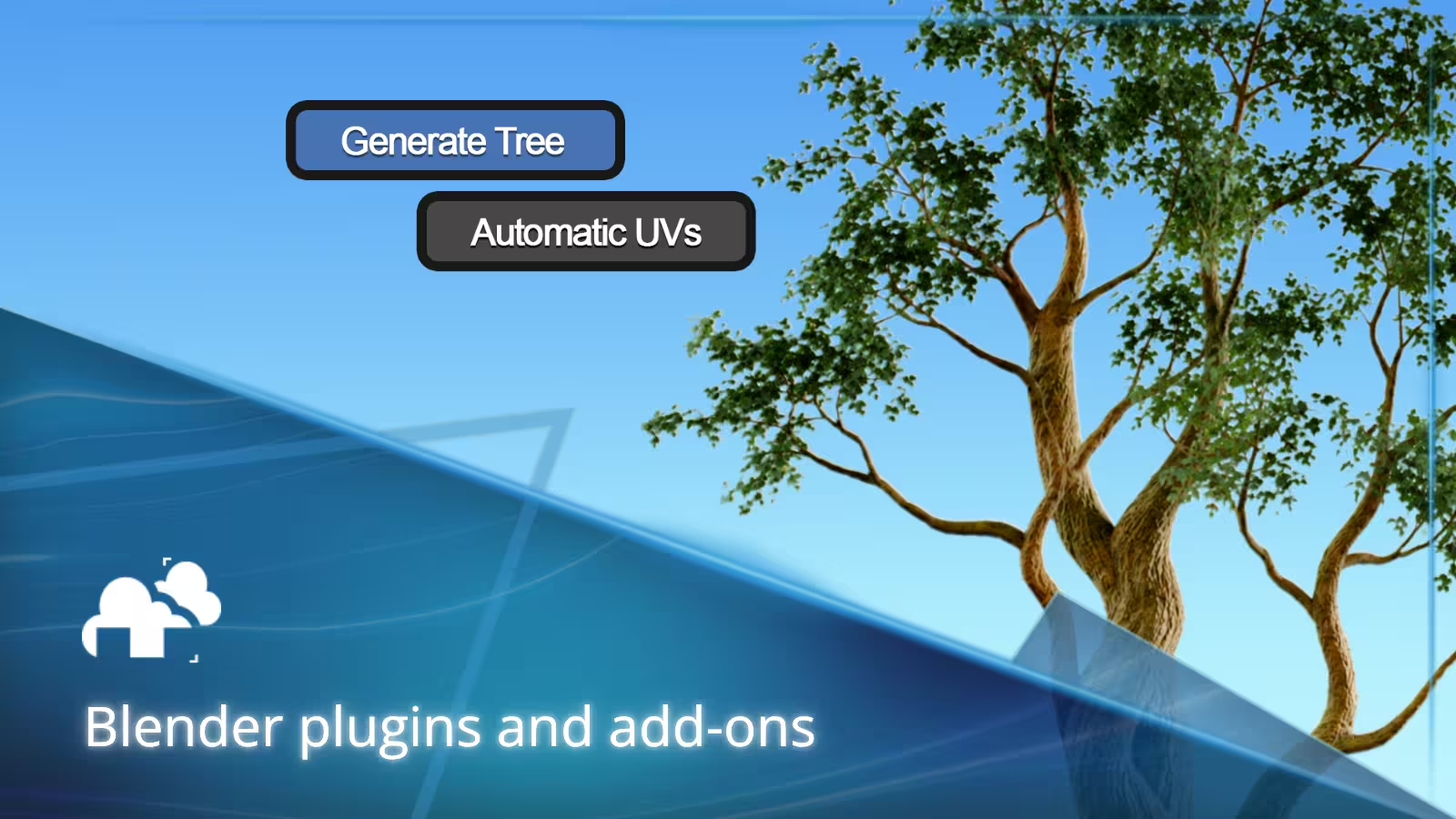
AnyTree turns a model shape into a customizable tree. It includes controls for the overall form, automatic UV creation, bark materials, leaves, and twig assets.
For environment artists, this gives you a faster starting point than building every tree from scratch while still allowing the result to be shaped around a particular composition.
Procedural vegetation also makes variation easier. Reusing the exact same tree repeatedly can quickly make an environment feel artificial, while adjustable procedural assets let you produce related forms without manually rebuilding each one.
Easy Terrain Generator
Easy Terrain Generator creates procedural landscapes with controls for height, scale, detail, water, vegetation, slope, and altitude. Different terrain styles can be produced by adjusting a relatively small set of parameters.
It is useful for quickly building background landscapes, testing compositions, or producing a base that can later be refined with custom assets.
For large scenes, however, remember that generating detail is only part of the workflow. Dense vegetation, large textures, displacement, and complex geometry can eventually shift the bottleneck from scene creation to viewport performance and rendering.
Procedural Interiors
Procedural Interiors generates walls, doors, and windows from a traced floor plan. Room dimensions and openings remain editable, so layouts can be changed without rebuilding the complete interior.
It also includes furniture assets that can help populate early visualizations and blockouts before custom models are added.
This is the type of add-on that can be especially useful during iteration. If a client changes a room layout several times, retaining editable dimensions and openings can be more valuable than generating the first version quickly.
Best Blender add -ons for simulations and effects
Flip Fluids
FLIP Fluids provides a specialized workflow for liquid and water simulation. It includes presets and controls designed to make fluid setup easier to manage than building every simulation from the beginning.
It is most useful for projects where liquid plays a major visual role and requires more control than a simple background effect.
Simulation tools also introduce an important production consideration: caching. Once a simulation needs to render on another machine or a render farm, the required cache data needs to travel with the project and remain correctly linked.
For more background on simulation workflows, including Blender's own fluid tools, see our practical guide to liquid simulation in 3D.
X Muscle System
X Muscle System adds simulated muscles, tissue, and skin behavior to character rigs. Muscles can be attached to bones and configured to preserve volume as the character moves.
The system is aimed at advanced character and creature work where surface deformation needs to respond more realistically to the underlying anatomy.
This is also a good example of an add-on that should be chosen around project requirements rather than features alone. For stylized characters, simpler deformation may look better and render faster. For close-up anatomical or creature work, the extra simulation can become much more valuable.
Easy Fog
Easy Fog provides controls and presets for fog, clouds, smoke, fire, and explosions. It allows artists to add atmospheric volume effects without constructing each setup manually.
It can be useful for quick environment work, cinematic lighting, and scenes that need more depth or atmosphere.
Volumetrics can also become expensive at render time, so judge these tools by the complete workflow rather than setup speed alone. Saving ten minutes while creating an effect is less useful if unnecessarily dense settings add hours to the final render.
Free versus paid Blender add-ons
Free Blender add-ons are a good place to begin when learning a workflow or solving an occasional problem. Many focused tools provide enough functionality for personal work, smaller projects, and artists who are still deciding which features they actually need.
Paid Blender add-ons are easier to justify when they remove work that appears in nearly every project. They may also offer broader feature sets, more frequent updates, documentation, or direct support.
The most useful comparison is not simply free versus paid. Ask:
- How often will I use it?
- How much time does it save each time?
- Does Blender already have a native alternative?
- Is the tool actively maintained?
- Will other artists or machines in the pipeline need it?
- Does it introduce additional assets, caches, or dependencies?
A $10 tool you never use is expensive. A more costly add-on that removes several hours of repetitive work from every project may pay for itself quickly.
For beginners, start with free Blender add-ons and native tools where possible. Once a repeated bottleneck becomes obvious, it becomes much easier to decide which paid tools are genuinely useful.
Common mistakes when choosing Blender add-ons
Installing too many tools
A large collection can create duplicated features, shortcut conflicts, slower startup times, and crowded panels.
Install tools gradually and remove the ones that rarely get used. A useful Blender add-on should make the workflow simpler, not give you another menu to search through.
Ignoring compatibility
Always check supported Blender versions before installing an add-on or updating Blender.
This matters even more in production. If an important file depends on an extension that no longer works after an upgrade, rolling Blender forward can create a problem that did not previously exist.
For projects that will render on other machines, also check whether the add-on itself needs to be available there. Our Blender documentation includes current information about supported plugins and preparing scenes for cloud rendering.
Choosing features instead of solutions
An add-on can look impressive in a demonstration without being particularly useful for your projects.
Focus on the actual task it solves and how often that task appears in your workflow. A long feature list means little if most of those features duplicate tools you already use comfortably.
Replacing foundational skills
Blender plugins and add-ons can accelerate modeling, rigging, texturing, UV work, simulation, and animation, but they do not remove the need to understand those processes.
Basic knowledge makes it easier to adjust the result, identify bad output, and solve problems when automation fails.
This also makes it easier to recognize when you do not need an add-on at all.
Final thoughts
There is no universal list of must-have Blender add-ons. A hard surface artist, character animator, environment designer, archviz artist, and motion designer will each benefit from a different toolkit.
Start with the tasks that consume the most time. Check whether Blender's native tools already solve them, then compare the expected time savings with the price and maintenance required by an additional tool.
For beginners, a few useful Blender add-ons are generally better than installing everything that appears in a recommendations list. For professional work, compatibility, reliability, project portability, and support become just as important as individual features.
The best Blender plugins and extensions ultimately disappear into the workflow. You stop thinking about the tool itself because it consistently removes repetitive work and lets you spend more time on the part of the project that actually needs your attention.
Register Now and Get $50 FREE Credits!