Our Mission

Only pay for what you render

Whether you’re an artist or a studio, GarageFarm makes rendering easy. Just upload your scene, let our cloud handle the heavy lifting, and download your frames in minutes.

Low Priority
$0.024
/ GHz·hour
Ideal for personal projects, look-dev, and early-stage tests. Prioritize cost over speed. Perfect for overnight renders and exploratory work.
Up to 100 nodes
RAM up to 120 GB
Standard email support
MOST POPULAR
Medium Priority
$0.036
/ GHz·hour
Our most versatile plan designed for professional creators and small studios. Enjoy consistent performance and priority queueing to keep your production on track without breaking the bank
Up to 150 nodes
RAM up to 240 GB
24/7 technical support
High Priority
$0.072
/ GHz·hour
For urgent projects that can’t wait — from large-scale computations to tight production deadlines. You get the fastest queue, premium support, and guaranteed access to top resources when every second matters.
Up to 300 nodes
RAM 240 GB
Top of the queue placement
Dedicated Support Lead
Low Priority
$0.004
/ OB·hour
Ideal for personal projects, look-dev, and early-stage tests. Prioritize cost over speed. Perfect for overnight renders and exploratory work.
15 nodes
Up to 48 GB VRAM (single/multi-GPU)
Standard email support
MOST POPULAR
Medium Priority
$0.006
/ OB·hour
Our most versatile plan designed for professional creators and small studios. Enjoy consistent performance and priority queueing to keep your production on track without breaking the bank
30 nodes
Up to 96 GB VRAM (single/multi-GPU)
24/7 technical support
High Priority
$0.012
/ OB·hour
For urgent projects that can’t wait. Get immediate access to our most powerful nodes and skip to the front of the line.
60 nodes
Up to 96 GB VRAM (single/multi-GPU)
Top of the queue placement
Dedicated Support Lead
Explanation of terms (What is node, Ghz..)

Priority is a price plan you can choose to render a job. You have a choice of Low, Medium, and High. Each priority offers you a different set of features and has a different rate. The higher the priority, the faster the rendering.

Per job limit is the maximum number of nodes you can use in a single rendering job. If you have multiple shots or scenes that you need to render at the same time, each of them can use the number of nodes available for given priority. For example, you can have:

- job1 - 100 nodes, job2 - 0 nodes etc. (on Low)

- job1 - 150 nodes, job2 - 150 nodes etc. (on Medium)

- job1 - 300 nodes, job2 - 300 nodes etc. (on High)

Total or user limit is the maximum number of nodes you can use in total at one time for all jobs that are rendering. It is a limit that applies only to projects rendering on Low priority.

Node is a computer designed and built for network rendering. You can think of it as a specialized server or rendering machine.

Ghz hour is the basic unit of CPU cost calculation. It is a price for 1 GHz used in an hour of rendering.

To calculate the cost of a scene, we take the total number of GHz used in one hour of rendering and multiply it by the GHz rate.

For example, if your 3D scene took one hour to render on GarageFarm and ten machines carried out the rendering task, the rendering would use a total of 550GHz, assuming each machine has 55GHz (22 cores x 2.5GHz x 10 machines = 550GHz). Now, we take the 550GHz and multiply it by the selected GHz rate. Here, we’ll use the Low priority rate, so 550GHz x 1h x $0.024 = $13.20. Based on this calculation, the cost of rendering such a scene on 10 CPU machines using Low priority would be $13.20.

NOTE: Machine specs above are provided for illustrative purposes only.

Node hour is just like the GHz hour, but it represents the cost for a node (rendering machine), and the rate is usually rounded up. It is a price for 1 hour of rendering on a single node.

Here’s an example:
Let’s suppose you have 50 frames to render. Each frame renders 1h long on GarageFarm, and you choose to render them on Medium Priority.

Assuming Medium Priority costs $1.50 per node hour, therefore:
50 frames x 1h x $1.50 = $75
The more you render, the lower the price.
Learn more about discounts
White grid pattern arranged in a semi-circular shape on a black background.

CPU nodes

Power through your most demanding CPU rendering projects with our high-performance nodes. Whether you're rendering complex animations or high-resolution stills, choose the hardware configuration that best fits your deadline and budget.
CPU node type A2

AMD Epyc 3rdgen 64 physical cores

$4.32 - $17.27

/ per hour
240GB RAM / 2.44 GHz
High
Cinebench 15
10,214
Cinebench 23
53,710
V-Ray 1.0.8
0m13s
V-Ray 5.01.01
48,462
Thea 3.5 1975
8,788
BlenderBenchmark 4.2.0
661
Corona 1.3 Benchmark
00m24s, Rays/s 19,485,240
CPU node type A1

AMD Epyc 3rdgen 32 physical cores

$1.44 - $8.64

/ per hour
120GB RAM / 2.44 GHz
Medium
Cinebench 15
5,107
Cinebench 23
31,222
V-Ray 1.0.8
0m26s
V-Ray 5.01.01
24,231
Thea 3.5 1975
4,730
BlenderBenchmark 3.2.0
232/132/108
Corona 1.3 Benchmark
00m49s, Rays/s 9,742,620
CPU node type 3

Intel Xeon v4 88 physical cores

$2.41 - $14.52

/ per hour
240GB RAM / 2.20 GHz
High
Cinebench 15
8,624
Cinebench 20
20,484
Cinebench 23
44,927
Thea 3.5 1975
9,430
V-Ray Benchmark
00m15s
Corona 1.3 Benchmark
00m24s, Rays/s 19,727,764
CPU node type 2

Intel Xeon v4 44 physical cores

$1.33 - $7.98

/ per hour
120GB RAM / 2.20 GHz
Medium
Cinebench 15
4,312
Cinebench 20
10,242
Cinebench 23
25,222
Thea 3.5 1975
5,846
V-Ray Benchmark
00m30s
Corona 1.3 Benchmark
00m49s, Rays/s 9,863,882
CPU node type 1

Intel Xeon v4 22 physical cores

$0.66 - $3.99

/ per hour
60GB RAM / 2.20 GHz
Medium Low
Cinebench 15
2,156
Cinebench 20
5,121
Cinebench 23
13,200
Thea 3.5 1975
3,147
V-Ray Benchmark
00m59s
Corona 1.3 Benchmark
1m37s, Rays/s 4,931,9411

GPU nodes

Accelerate your workflow with our top-tier GPU servers. Whether you need ultra-fast look development or final high-res frame outputs, scale your graphics rendering instantly to meet even the tightest deadlines without breaking a sweat.
GPU node type 4

1x Nvidia RTX 4000 Ada 20GB vRAM

$1.12 - $6.73

/ per hour
AMD Epyc 2ⁿᵈ gen 8 threads ⓘ/ 60GB RAM / 2.6GHz
Medium Low
OctaneBench 2025.2.1
394
V-Ray Benchmark 5.01.01 - RTX
1,562
BlenderBenchmark 4.5.0
3,599
RedshiftBenchmark 3.5.12 RTX
215s
GPU node type 3

1x Nvidia RTX 6000 Pro Blackwell 96GB vRAM

$6.44 - $25.76

/ per hour
AMD Epyc 4ᵗʰgen 16 threads ⓘ/ 86GB RAM / 3.25GHz
High
OctaneBench 2025.2.1
1,639
V-Ray Benchmark 5.01.01 - RTX
6,794
BlenderBenchmark 4.5.0
15,584
GPU node type 2

1x Nvidia L40s 48GB vRAM

$3.16 - $18.99

/ per hour
AMD Epyc 4ᵗʰgen 16 threads ⓘ/ 86GB RAM / 2.7GHz
Medium
OctaneBench 2025.2.1
1,195
V-Ray Benchmark 5.01.01 - CUDA
4,097
V-Ray Benchmark 5.01.01 - RTX
4,874
BlenderBenchmark 4.3.0
11,263
RedshiftBenchmark 3.5.12 RTX
81s
GPU node type 1b

2x Nvidia RTX A5000 24GB vRAM

$2.97 - $17.88

/ per hour
Intel Xeon v4 16 threads ⓘ/ 140GB RAM / 2.4 GHz
Medium
OctaneBench 2025.2.1
1,183
V-Ray Benchmark 5.01.01 - CUDA
3,018
V-Ray Benchmark 5.01.01 - RTX
4,482
BlenderBenchmark 4.3.0
4,349 (x2)
RedshiftBenchmark 3.5.10 RTX
98s
GPU node type 1a

1x Nvidia RTX A5000 24GB vRAM

$1.49 - $8.94

/ per hour
Intel Xeon v4 8 threads ⓘ/ 70GB RAM / 2.4 GHz
Medium Low
OctaneBench 2025.2.1
601
V-Ray Benchmark 5.01.01 - CUDA
1,447
V-Ray Benchmark 5.01.01 - RTX
2,272
BlenderBenchmark 4.3.0
4,349
RedshiftBenchmark 3.5.10 RTX
214s
We accept payments via

Volume Discounts

The higher your rendering needs are, the better the discount you can get to render more economically. Use the slider to calculate the discount and the rate per hour of rendering. You can also view the table.
Bonus credits
0% 4% 20% 52% 80% 100%
$0 $250 $2,500 $6,500 $10,000 $12,500
$
$
$ 0.030
We accept payments via
Credit cards
Visa payment card company logo.
Mastercard logo with overlapping red and orange circles.
Additional Payment Methods
Google Pay logo.
Green checkmark inside a green circle above the text WeChat Pay.
Bank Transfers
Blue icon depicting a bank building with a right-pointing arrow.
Blue gradient blurred background with white noise texture fading outward.
Calculator

Calculate your render times

Use our automated calculator to estimate your rendering costs and computer hardware resource requirements before you begin your project.

How long will my project render on the farm?

How much will I pay to render my project?

What priority should I choose?

FAQ

Frequently asked questions

Everything you need to know before starting your first render.
General
Uploading & Downloading
Question text goes here

Lorem ipsum dolor sit amet, consectetur adipiscing elit, sed do eiusmod tempor incididunt ut labore et dolore magna aliqua. Ut enim ad minim veniam, quis nostrud exercitation ullamco laboris nisi ut aliquip ex ea commodo consequat. Duis aute irure dolor in reprehenderit in voluptate velit esse cillum dolore eu fugiat nulla pariatur.

Question text goes here

Lorem ipsum dolor sit amet, consectetur adipiscing elit, sed do eiusmod tempor incididunt ut labore et dolore magna aliqua. Ut enim ad minim veniam, quis nostrud exercitation ullamco laboris nisi ut aliquip ex ea commodo consequat. Duis aute irure dolor in reprehenderit in voluptate velit esse cillum dolore eu fugiat nulla pariatur.

Question text goes here

Lorem ipsum dolor sit amet, consectetur adipiscing elit, sed do eiusmod tempor incididunt ut labore et dolore magna aliqua. Ut enim ad minim veniam, quis nostrud exercitation ullamco laboris nisi ut aliquip ex ea commodo consequat. Duis aute irure dolor in reprehenderit in voluptate velit esse cillum dolore eu fugiat nulla pariatur.

Pricing & billing
Do I need to get a subscription?

On GarageFarm, you pay as you go. Pay only for the time you are rendering. It’s up to you how much you spend. It can be anything between $10 and $10,000 or much more. You’re not required to purchase a subscription and you won’t incur monthly charges for using the service.

Getting started
Do I need to register an account?

To use GarageFarm cloud render farm you need to register an account and then activate it. Registration is straightforward and requires you to provide your name, email, and country. You will get a verification link in the email. When you open the link, your account will get activated and will be ready to use. 

We don’t require a credit card to start using the service. As soon as you register and activate an account, you can use a trial that comes with starter credits.

Uploading & downloading
Do I need to upload my project again after rendering a test job?

You can submit a job that has been previously tested by right-clicking on it in the web dashboard and selecting ‘Render full range’ without uploading the project again. Please note that the “Render full range” is available for jobs that have been previously rendered with a step (i.e. 1to400s20). Certain renderers and GI modes won’t allow using this feature and you will need to upload the scene again to render the full range.

Pricing & billing
Do you accept American Express card payments?

Yes, we accept American Express card payments. AmEx card payments are possible when you process a transaction through PayPal or Revolut.

General
Do you have ISO certification? Is GarageFarm ISO certified?

We understand that your projects are valuable and confidential, and we take security very seriously.

GarageFarm's sister company, and our infastructure provider, Copernicus Computing is certified as ISO 27001 compliant which means that the organization has been audited by an accredited certification body and have demonstrated that it has implemented an information security management system that meets the international quality standards.

This certification ensures GarageFarm customers that the rendering services comply with strict security and privacy standards, providing an additional level of trust in how their data and projects are managed on the GarageFarm platform.

To learn more about the ISO certification and its implementation process by our sister company, you can read this blog article. You can also view the ISO 27001 certificate here.

Pricing & billing
Do you offer discounts for students?

Sorry but we don’t. You should try our Low priority, though. It’s great for students and artists who are just starting out. In addition, each account comes with $25 trial credits. You can obtain additional credits through coupons giveaways. Make sure to follow us on Twitter or sign up for our newsletter to stay in the loop.

General
Do you offer to sign an NDA?

We can either offer to sign our NDA or sign the NDA provided by you after our legal department reviews the document and approves it.

General
Do you support 3rd party plugins? What if I use a plugin that you don’t have on your farm?

We have a broad range of supported plugins that we constantly maintain and update. If you happen to use a plugin that we don’t have or have a different version currently installed, it‘s not a problem. Talk to us via live chat and tell us the app/plugin you’re using. We’ll explore purchase options. If the software is free, we’ll try to get it installed on the farm within a few hours.

Please note that the custom plugin installations apply only to users rendering on Medium and High priorities. Take a look at the list of apps and plugins supported on GarageFarm https://garagefarm.net/supported-apps.

General
Do you support CPU and GPU rendering? What software can render on CPU and what on GPU?

On GarageFarm, you can render on nodes that either use CPU or GPU. The computing device you choose to render on largely depends on your 3D software, the technology it supports, and compatibility with our hardware. 

For example, if you're using Redshift, you can mainly render on GPU because that's how Redshift is built (with an exception of newer Redshift that has a CPU rendering capability). If you're using Cycles in Blender, you can choose either CPU or GPU because Cycles supports both technologies and both modes are supported on GarageFarm. V-Ray also supports both CPU and GPU, and both modes are supported on GarageFarm.

Rendering modes supported on GarageFarm:

V-Ray - CPU and GPU

Corona - CPU

Redshift - GPU

FStorm - GPU

ProRender - GPU

Cycles - CPU and GPU

Cycles 4D - CPU and GPU

Arnold - CPU

Cinema 4D native engine - CPU

Modo native engine - CPU

Pricing & billing
Does your price include tax/VAT?

Our prices do not include the tax/VAT.

We are a United Kingdom-based company, which means that for everyone from the UK we need to add 20% of the VAT to the payment. Generally, HRMC will refund the VAT amount to British companies after filing the VAT Return form.

If you are from a country within the European Union, and you have a valid VAT number, the tax/VAT won’t be added to the payment.

If you are from a country within the European Union, but you don’t have the VAT number, we will add the standard VAT rate for your country to your payments.

If you are from a country outside of the European Union, you don’t need to pay the tax/VAT.

Uploading & downloading
How can I check rendered frames?

Each completed frame is downloaded automatically to your local drive to a directory you selected in the renderBeamer application. Please make sure you keep renderBeamer running and the auto-download on whenever you have jobs rendering to get the frames downloaded right away. 

As an alternative, when you’re logged in to your account on the website https://app.garagefarm.net/, you can preview all rendered frames in the web dashboard. In the file browser on the left, you can see all your project files. Navigate to the folder inside your project with Renders in the name at the end. You can double click on the frame to preview it online.

Uploading & downloading
How can I download frames?

To download frames you will need to open renderBeamer - our desktop client app. If you have auto-download turned on in preferences, the frames will automatically download to your local drive as soon as they finish rendering. If the auto-download is turned off, you can download the frames manually by going to the downloads tab, selecting the job from the list, and right-clicking or hitting the download button. Each frame will download to a directory you selected in your renderBeamer preferences. If you’re not seeing the job or some frames are missing, try the refresh button - it will sync the app with the cloud. Check out our video tutorial showing how to download frames https://youtu.be/z0F0p5TSHRw?t=304.

Testing & estimating
How can I get a render time and cost estimate?

You can get a quick estimate using our cost calculator. Remember, it’s only an approximation and only works for animations.

To get a more accurate estimate for animations, we recommend testing a few frames on the farm using a step. For example, if you have 400 frames in your sequence and set the frame range to 1to400s20, you will get 20 frames rendered in total. Our system will then calculate the cost estimate for the full range based on those frames rendered. An important thing to note is that test rendering using a step allows you to test the frames across the entire animation. This results in a more accurate estimation than rendering, for example, 5 successive frames from one part of the animation, i.e. 1to5.

Remember that the more frames you render in a test job, the more accurate the estimation is. Also, you won't need to render those frames again when you choose to render a full range after testing a job with a step. 

The calculator works with animations only. To get an estimate for a still, render the image on the farm in a lower resolution. 

Please render the image in 1/5 resolution or any other smaller resolution. In the case of a 1/5 resolution test, the cost of a full-resolution render will be 25 times higher than the cost of a test. For example, if you want to render an image in resolution 5000x6000, run a test in 1000x1200 res first, which is 1/5 of the full resolution. If your test costs $1, the estimated cost for the full-res image should be around $25 (5 x 5 = 25). For a 1/4 test, it would be $16 (4 x 4 = 16). You can apply the same logic to any other resolution. 

Dive deeper into the why and how of running tests on a render farm https://garagefarm.net/blog/how-to-use-online-render-farms-part-2.

General
How can I know what the current farm load is?

Upon submitting a job on the web dashboard, you’ll be able to see the number of jobs that are currently rendering and waiting in the queue. You can use this info to decide which priority you need to use given the farm load.

Pricing & billing
How can I pay for the service?

We offer a variety of payment options that include debit/credit card, wire transfers, PayPal and some other e-wallets. We encourage you to check out this document detailing how to buy credits on GarageFarm https://app.garagefarm.net/payments.pdf.

Testing & estimating
How can I test the service?

Every new user gets trial credits when registering an account on GarageFarm. You can use the trial to test the service without making a commitment. The trial is sufficient to get familiar with the workflow and to test all features thoroughly. 

You won’t be required to use a credit card or to pay when using a trial account on GarageFarm.

Uploading & downloading
How can I upload my project to the farm?

Once you have an account on GarageFarm, you’ll need to download and install our software that includes a desktop client app and a plugin for the DCC(3D app) of your choice. After installing the software and a quick setup, you will be able to upload your project to our farm right from your DCC’s interface.

Getting started
How to get started?

Once you have an account on GarageFarm, you will need to download the desktop client app called rendreBeamer. It bridges your computer with the cloud. In renderBeamer, you can select a DCC (3D app) you want to integrate with. The integration is quick and simple and requires installing a plugin for your DCC. 

The next step is to send a project to the farm from the interface of your DCC using the renderBeamer plugin. The full workflow is described step by step in our starter guide https://garagefarm.net/software-guides/general-guide.

Pricing & billing
I got charged for frames that were broken or rendered too long. Can I get a refund?

Don’t worry. Please contact us and we will investigate the issue and will help you find the cause.

If the cause of the incorrect frames was our system failure, we will offer you a refund or some other form of compensation.

Please note that we can’t guarantee a full refund in cases where no tests were performed or the instructions provided in the system or documentation weren’t followed or were neglected. You can read about the Return Policy in our Terms of Service.

Uploading & downloading
I have a new scene that uses assets from the same project already uploaded to the farm. Will I have to upload the entire project with all the assets again?

No! Our software will checksum the files that are already present on your GarageFarm account and upload only the new scene, new assets, or the assets that have been modified.

Testing & estimating
If the calculator says my project would take 10h to render, is it the actual render time?

The calculator shows the farm render time in a best-case scenario where your job gets a maximum number of available nodes, however, in practice that number may vary. In addition, the calculator only shows the time of the nodes when they are rendering. It doesn't include the waiting time in the queue or the time a scene would need to open/load on the render node.

General
Is the farm secure? Can I render a confidential project on GarageFarm?

When uploading scenes to GarageFarm, all transfers are encrypted. Projects stored on GarageFarm are secured on internal servers safe from any external access. We will always ask for your permission in case we want to use your project files to provide better customer support and a better user experience. We will never share your files with anyone outside of GarageFarm without your written consent.

Following controls are in place to prevent unauthorized physical access, damage and/or interference to the data center building and office: Security guards, secure gate and doors to the servers area and server room. Secure gates and doors, barbed wire fence, security officers, security agency monitoring, security cameras, individually issued security cards for accessing separate areas of the building. To ensure physical security and restrict access and protect equipment we have security guards, access cards, reception, ID cards.

By system design, GarageFarm users are not allowed to access any other data than their own. No client is allowed to access data directly. Each client is allowed to access only his data. Data access is highly secured against unauthorized access.

Our data centre operator provides secure internet connectivity. They do not have access to our local network and data contained there and the data transfer is securely encrypted.

We conduct penetration testing and vulnerability scanning at least once a year. We outsource the testing to our data centre operator's IT department. We evaluate our network and infrastructure security by routine checks. We also perform critical vulnerability software security updates - infrastructure systems and networking gear. 

We perform regular sandbox tests of our own and acquired software against a set of rules. Additionally, we perform antivirus and malware checks. Security on developers' workstations is monitored with special care. We continuously and actively monitor network, firewall, and system device logs and employ all the newest security patches and updates company-wide. Our development team is regularly trained in the scope of software cybersecurity.

Getting started
Is there a trial available?

Every account comes with $25 trial credits to allow you to test the service without commitment. You can use all the farm features just like on a full account with two limitations - 10 render nodes (machines) and 30 jobs. It means that you can render a project that costs no more than the amount of the trial credits and the number of jobs doesn’t exceed 30. While on trial you won’t be able to utilize the full rendering speed. However, as soon as you make your first credit purchase the node and job limitation will be lifted.

General
What does GarageFarm do?

GarageFarm has been helping 3D artists meet deadlines and scale their businesses since 2010. It seamlessly connects with your 3D software and fully automates the process of rendering. You can send your scene right from the interface of your application without any complex and time-consuming setups. GarageFarm combines the best of both worlds - advanced technology and the human factor. When rendering with us you're never in the dark, left with no help and a looming deadline. 

Don't take our word for it. See how our customers use GarageFarm and what they say about us https://garagefarm.net/case-studies.

Uploading & downloading
What files should I upload?

To ensure correct results we’ll need all the files used in the scene: textures, proxies, xrefs, lights, cache etc. However, you don’t need to worry about it because our plugin will analyze the project and will collect all the files connected with the scene and upload them to the farm automatically.

General
What should I do when a scene fails to render?

We have a team of experts that are online and at your disposal at any time of the day 7 days a week. All you need to do is reach out through our live chat and ask about the job that failed. We will troubleshoot it for you and assist you through the process.

Pricing & billing
What will happen when my render job is more expensive than the credits available in my account?

As soon as your account goes below 0, the render job will get paused (not killed!) and the currently rendering frame(s) will continue rendering until finished. This means your account will go to a negative balance. To prevent this from happening it is crucial to run test jobs before deciding to render full range or full-resolution renders in order to estimate job cost and plan accordingly.

The negative balance in the account is the responsibility of the user and must be paid to enable back full system functionality.

Additionally, if you are a new user and haven't made any payment yet, when your balance reaches -$50, the ongoing jobs will be killed to avoid accruing further costs.

Pricing & billing
What’s included in the rendering time and in the price? How am I charged? How is my render job billed?

We only charge for rendering time, in other words, the time nodes (farm computers) are working and actively processing a job. To break it down further, rendering time includes scene/asset loading, pre-processing, rendering, and output saving. All these processes influence the total time it takes to render a project and effectively that’s what is included in the final cost.

We don’t charge for jobs while they’re waiting in the queue, when they’re acquiring nodes, or when software is being installed on the node prior to starting a 3D app. The billing starts as soon as a job is assigned a node and the node starts rendering. We charge by the second and the pricing is all-inclusive - it encompasses electricity cost, license cost, and service cost. 

See our Pricing page to learn more.

General
What’s your storage policy? How long will you keep my files?

We allow our users to store project data (project files and any files saved in an account) on our servers for a total of 28 days after a completed render job or project. We guarantee to safely store project data as they are within the initial 7 days. After that, we will relocate the data to archive storage for the remaining period. The archive storage isn’t guaranteed against data loss. We will completely and securely delete the project files stored in your account 28 days after the last completed render job in the given project.

Pricing & billing
When should I pay?

Initially, you receive $25 credits that you can use to run some test jobs and get familiar with our service. Once you use them up, you’ll need to buy credits to continue rendering. You should give our discounts offer a closer look.

General
Where are you based?

We are a UK based business, our data centre is in Poland, and the employees are working remotely from various locations in Europe, Asia, and Australia.

Testing & estimating
Why is running test jobs important?

Network rendering across multiple machines is very different from rendering locally on a single machine, especially when system environments aren’t the same as is often the case with cloud rendering. Tests help you determine whether your scene renders fine and produces the same results as on your local machine. On top of that, you avoid the situation where you pay for results that aren’t what you had in mind.

We always urge users to run tests first no matter how optimized a scene might be or how confident you are that the scene will render without any issues. Better be safe than sorry. In addition, tests cost very little and if the results are correct, the frames rendered in a test won’t be re-rendered and you won’t be charged for them when rendering full range.

Thank you! Your submission has been received!
Oops! Something went wrong while submitting the form.
Get $25 starter credit
No credit card required

Join thousands of 3D artists already rendering in the cloud.

White grid pattern arranged in a semi-circular shape on a black background.
Blue frog perched on a log surrounded by green plants and sunlight.
Futuristic Pet Habitat
by David Aguero
Blue Hyundai Sonata sedan parked on wet reflective surface under cloudy sky.
Hyundai Sonata
by Digital Tricker
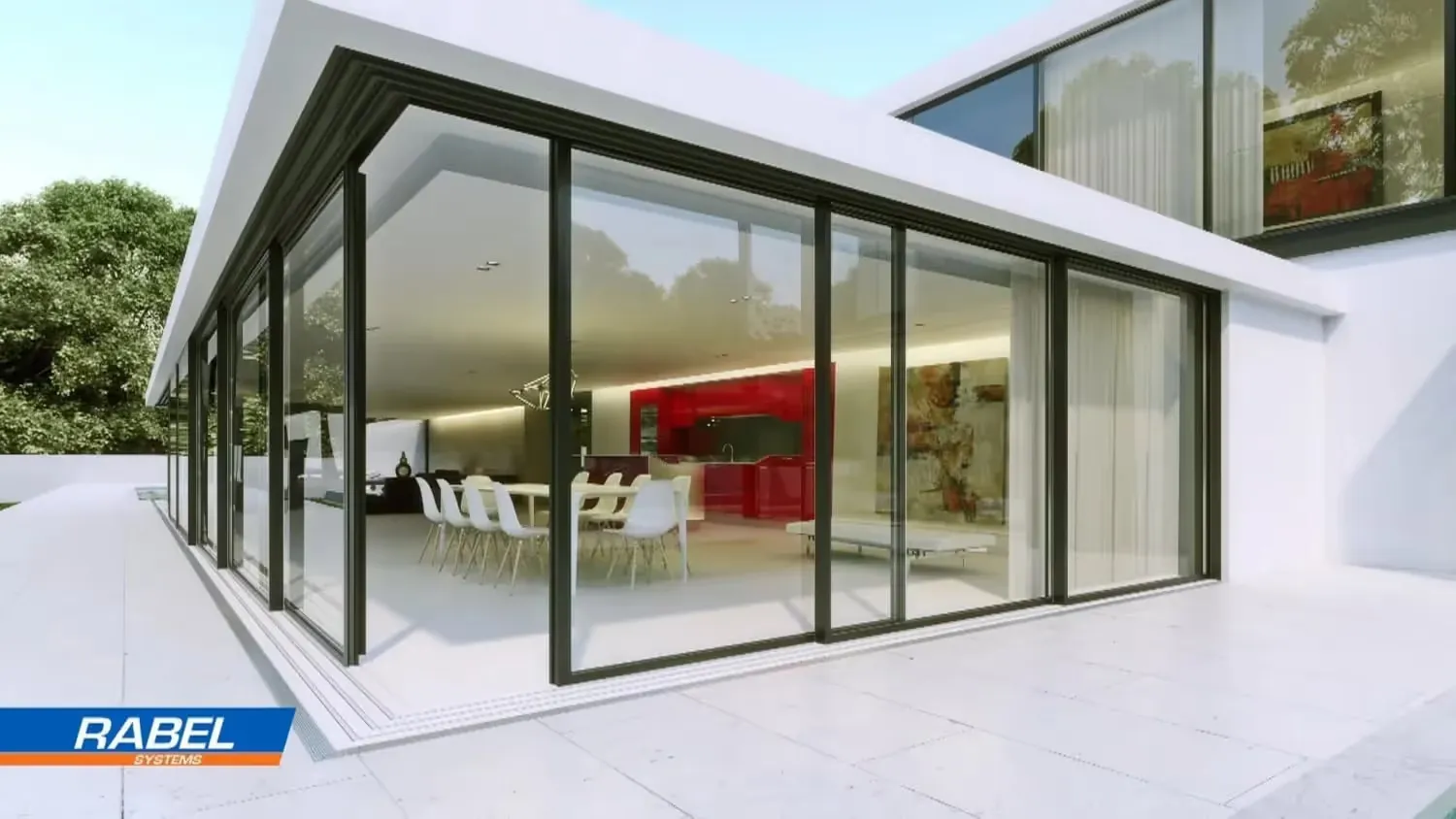
Modern house with floor-to-ceiling glass walls, showing a white dining table with chairs and a red kitchen inside.
Luxury Home
by TECHART
Animated pirate chef with a skull-and-crossbones hat pouring a dark liquid from a bottle labeled 'CAGO' into a pot inside a wooden cabin.
Cooking with Fire
by Joel Best