
Key takeaways
- The global 3D rendering market was valued at $4.5 billion in 2025 and is projected to reach $5.7 billion in 2026 (Grand View Research).
- The NVIDIA GeForce RTX 5090 provides 32 GB of GDDR7 VRAM (Nvidia).
- The best workstation depends on the artist’s software and workload.
- CPU, GPU, memory, storage, cooling, and power all affect performance.
- A balanced system is usually more useful than overspending on one component.
TL;DR
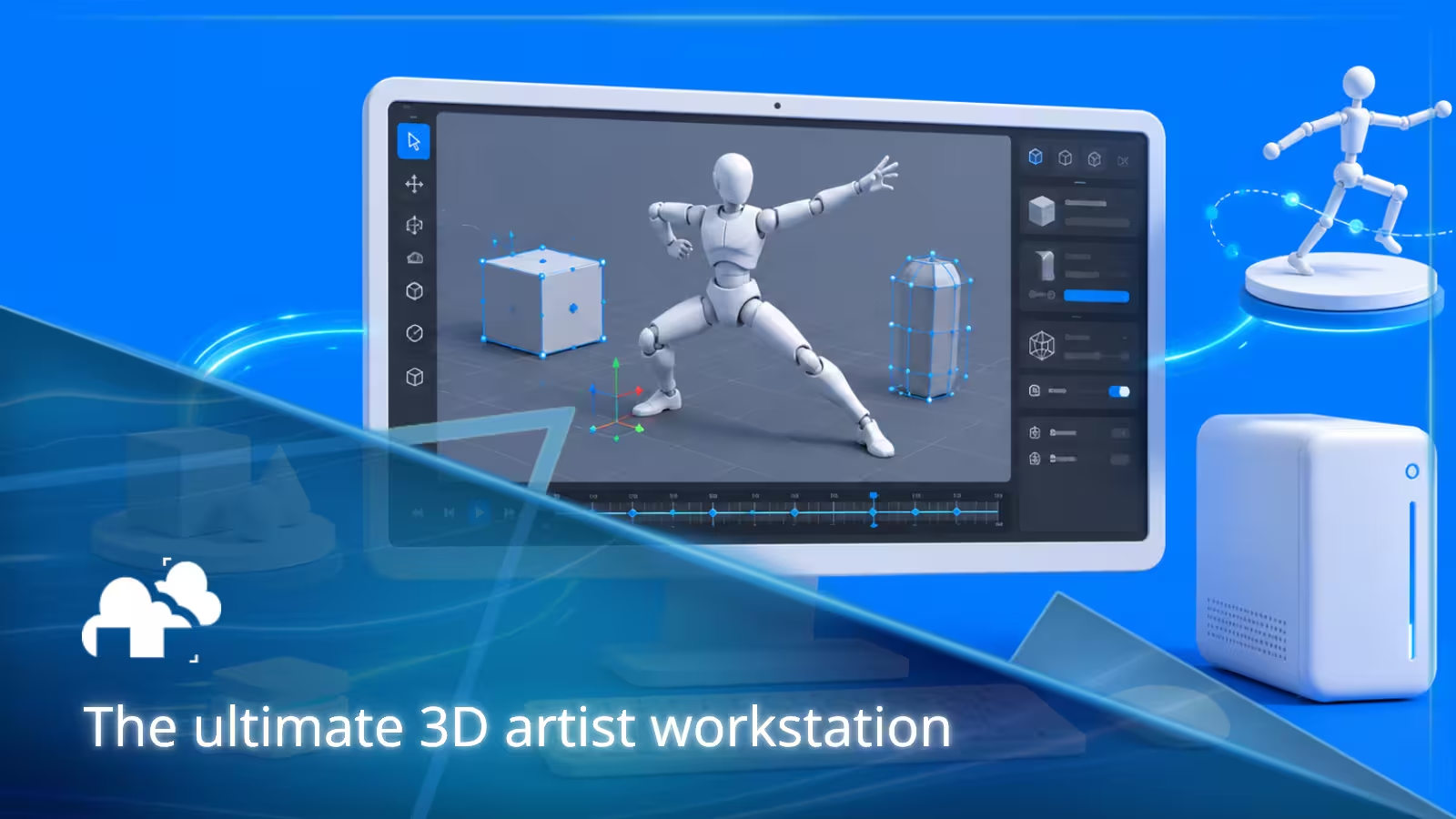
The ultimate workstation for a 3D artist depends on the work it needs to handle. Modeling, animation, rendering, simulation, texturing, and compositing all place different demands on hardware, so the strongest build is one that balances CPU performance, GPU power, memory, storage, cooling, and expandability around the artist’s actual workflow. When final rendering becomes too demanding for one machine, external rendering resources such as a render farm can add computing power without requiring every possible upgrade locally.
Why workstation performance matters for 3D artists
A 3D workstation needs to keep the viewport responsive, handle large scenes, process simulations, load textures, and eventually render the finished project. Hardware that struggles with these tasks can slow down both creative decisions and final production.
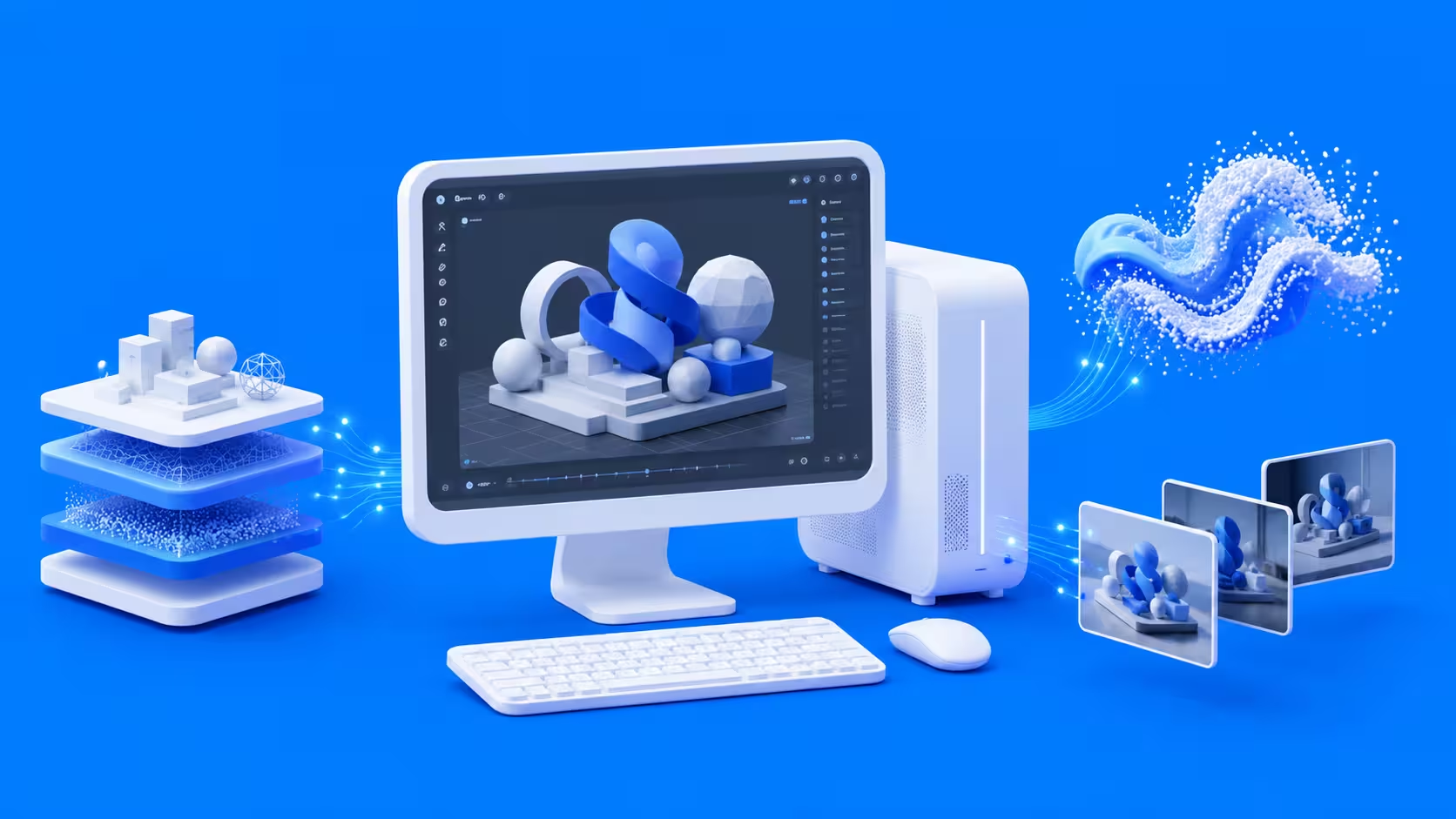
The global 3D rendering market was valued at $4.5 billion in 2025 and is projected to reach $5.7 billion in 2026 (Grand View Research). As 3D work continues to grow across animation, visualization, games, advertising, and product design, artists are increasingly working with heavier scenes and more demanding workflows.
Start with the type of 3D work you do
Before choosing hardware, identify which parts of your workflow use the most computing power. A machine built for animation may need different priorities from one designed mainly for final rendering or simulation.
Modeling and animation
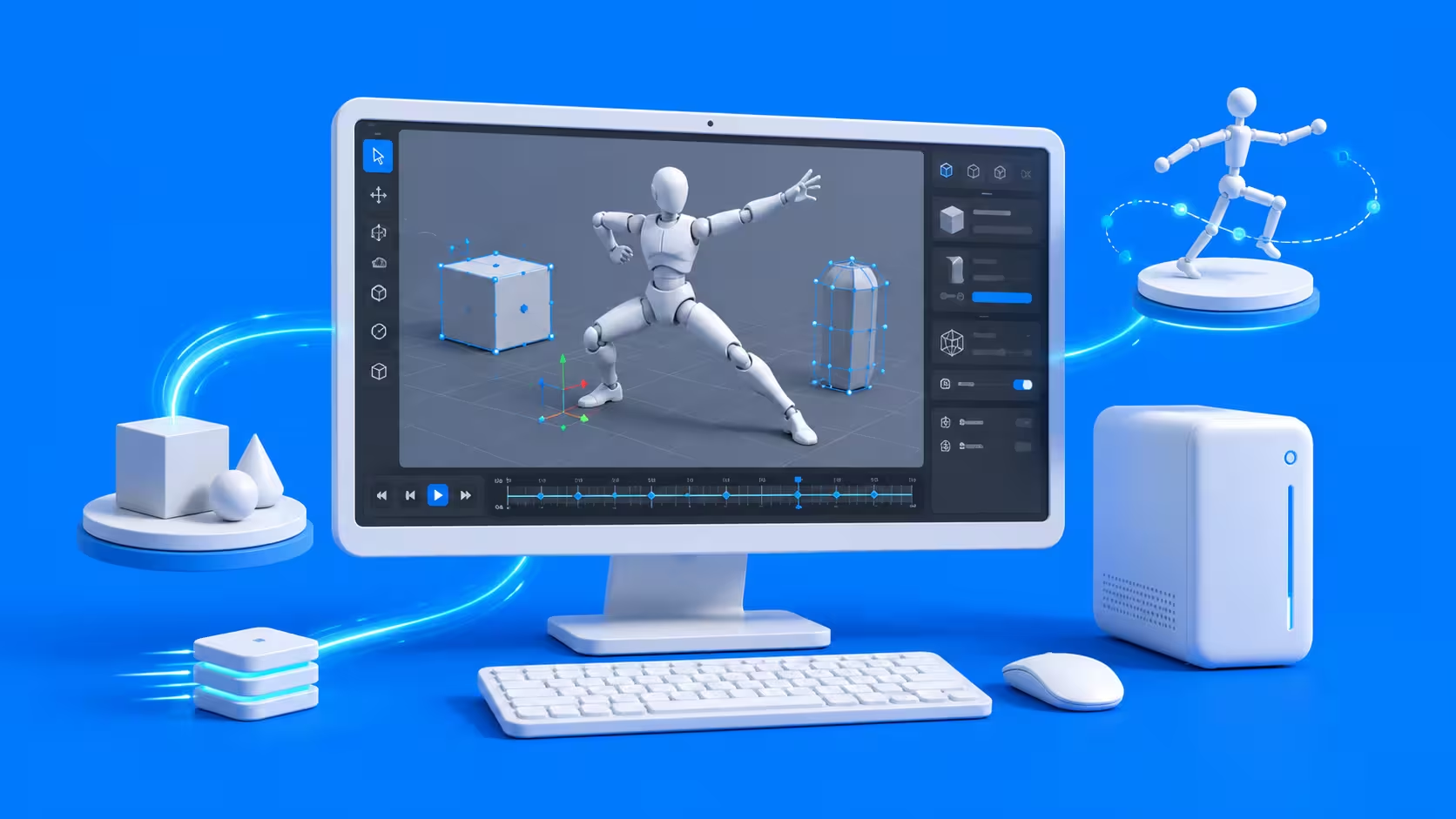
Modeling and animation benefit from strong CPU performance, a capable GPU, enough memory, and fast storage. The goal is usually smooth interaction while navigating scenes, editing geometry, posing characters, and working with modifiers.
GPU rendering
GPU rendering depends heavily on graphics performance and available VRAM. Large scenes, detailed geometry, and high resolution textures can quickly increase memory use, so compatibility and capacity matter alongside raw speed. But it’s great for fast rendering and handling many tasks at once.
CPU rendering and simulation
CPU rendering typically does not render as fast as GPU, but benefits from processors that can handle heavy tasks, while simulations can also depend heavily on system memory and storage. Good cooling becomes important because both workloads can keep the processor busy for long periods.
Texturing and compositing

Texturing and compositing often benefit from plenty of memory, GPU acceleration, fast storage, and a good monitor. High resolution textures and image sequences can consume significant system resources.
Choosing the right CPU
The CPU affects scene evaluation, modifiers, animation calculations, simulations, scripting, and general application responsiveness. Even artists who render mainly on the GPU should still pay attention to processor performance.
Clock speed versus core count
Interactive tasks often benefit from fast individual CPU cores, while rendering and some simulations can take better advantage of many cores. The best choice depends on which type of workload takes up more of your time.
Mainstream versus workstation CPUs
Mainstream processors can be a strong choice for modeling, animation, GPU rendering, and general 3D work. Workstation processors become more useful when projects need higher core counts, greater memory capacity, or more expansion options for heavy rendering and simulation workloads.
Choosing the right GPU
The GPU affects viewport performance, real time shading, ray tracing, GPU rendering, and many accelerated creative tools. Artists should first check what their software and renderer support before choosing a card.
Why VRAM matters
VRAM stores scene data such as geometry, textures, and other information needed during GPU rendering. The NVIDIA GeForce RTX 5090 provides 32 GB of GDDR7 VRAM, showing how much graphics memory is now available in high end consumer hardware.
More VRAM can help with larger projects, but artists should still choose based on the scenes they actually work with rather than buying the largest capacity available.
Consumer versus professional GPUs
Consumer GPUs can provide strong performance for many artists and small studios. Professional GPUs make more sense when a workflow needs larger memory capacities, specialist features, or specific professional requirements.
How much RAM does a 3D workstation need?
RAM requirements depend heavily on scene complexity. Geometry, textures, caches, applications, and background tools all share system memory, so larger projects and heavy multitasking can increase requirements quickly. Capacity is usually the first concern, and a workstation should have enough memory to handle current projects comfortably while leaving some room for scenes to grow.
Building a fast storage setup
Fast storage helps with opening projects, loading textures, saving large scenes, reading assets, and processing caches.
Active project storage
Fast SSD or NVMe storage works well for the operating system, applications, active projects, textures, and simulation caches. Artists who work with large files can benefit from keeping frequently used data on their fastest storage.
Archive and backup storage
Finished projects can be moved to larger secondary drives, external storage, or network storage. Important files should also exist in more than one location so that a single drive failure does not remove the only copy.
Motherboard and expansion
The motherboard determines how much room the workstation has to grow. Artists should consider memory support, storage slots, PCIe connectivity, networking, ports, and the physical space available for large graphics cards. Leaving room for more storage, memory, or expansion hardware can make future upgrades easier without replacing the entire system.
Cooling, power, and case design
Rendering and simulation can keep components under heavy load for long periods, so cooling and power delivery need to support sustained workloads rather than short bursts of performance. A suitable case should provide enough airflow and physical space for the GPU, CPU cooler, storage, and future upgrades. Noise also matters if the workstation will sit close to the artist throughout the day.
Windows, macOS, or Linux?
The operating system should be chosen around software compatibility and the tools used in the workflow.
Windows
Windows offers broad hardware choices and strong support across many 3D applications, renderers, and graphics cards.
macOS
Mac systems can work well for artists whose preferred applications and renderers support Apple Silicon. Compatibility with specific plugins and GPU technologies should be checked before buying.
Linux
Linux is common in VFX, rendering, and technical production environments. It can be a strong option when the required software, plugins, and drivers are fully supported.
Do not forget the rest of the workstation
A powerful computer is only part of the setup. Monitor quality, input devices, networking, and ergonomics all affect the everyday experience.
Monitor and input devices
Resolution and color accuracy matter for texturing, lighting, compositing, and visualization. A comfortable mouse, keyboard, graphics tablet, or 3D navigation device can also make long sessions easier.
Networking and ergonomics
Fast networking helps when working with shared storage, remote machines, or rendering services. Desk space, monitor placement, heat, and noise should also be considered when designing the complete workspace.
Balancing performance, reliability, and noise
Benchmark scores are useful, but stability and sustained performance matter more during long production workloads. Good cooling, reliable storage, stable drivers, and manageable noise can have a bigger impact on everyday work than a small increase in peak performance. A balanced workstation should remove real bottlenecks without becoming unnecessarily expensive, loud, hot, or difficult to maintain.
When one workstation is not enough
There is a practical limit to how much computing power makes sense inside one desktop. Some projects only need extra resources during the final rendering stage.
Local rendering
Local rendering is useful for previews, testing, look development, and smaller final jobs where immediate access to the result is convenient.
Adding more local hardware
Artists with regular rendering workloads may add another GPU or use a dedicated render machine when the extra hardware will be used often enough to justify the cost and maintenance.
Using a render farm
A render farm can process demanding final frames while the workstation remains available for modeling, animation, lighting, and texturing. This allows the local machine to focus more on interactive creative work instead of being built around the largest render job an artist might only encounter occasionally.
Final thoughts
Building the ultimate workstation starts with understanding where your current workflow slows down. Some artists will benefit most from a stronger GPU and more VRAM, while others need more CPU performance, memory, or faster storage.
The best workstation brings those parts together in a balanced system that stays responsive, stable, and comfortable to use while leaving room for larger projects and future upgrades.
Register Now and Get $50 FREE Credits!