Key takeaways
- Blender Animation Nodes is an add-on that allows artists to create and control animations through a visual node system.
- Animation Nodes can control object movement, rotation, scaling, text, and motion graphics.
- Blender released three major versions in 2025, including Blender 5.0, which introduced improvements to its animation tools.
- Animation Nodes supports complex animations involving multiple objects, timing controls, and connected transformations.
- The add-on can complement traditional keyframe animation, giving artists more flexibility when creating motion graphics.
TL;DR
Blender Animation Nodes is a visual scripting add-on that lets artists create animations by connecting nodes instead of manually controlling every movement with keyframes. It can animate object transformations, text, and motion graphics while giving users control over timing, movement, and transitions. This guide explains how Animation Nodes works, how to install it, and how to use its essential tools to build animations in Blender.
Introduction: A different way to animate in Blender
Animating in Blender usually begins with keyframes. Artists position an object, set a keyframe, move to another point in the timeline, and adjust its position again. Blender then calculates the movement between those keyframes. This approach works well for many projects, but managing individual animations can become time consuming when a scene contains numerous moving objects.
Blender Animation Nodes offers another approach through a visual scripting system. Artists connect nodes that represent objects, values, transformations, and timing controls to build animations. This makes it easier to manage relationships between different elements and adjust how they move without editing every object separately.
What are Blender Animation Nodes?
Animation Nodes is a free, open source Blender add-on developed by Jacques Lucke. It allows users to create animations through connected nodes that control different aspects of a scene. The add-on is particularly useful for motion graphics, animated typography, and scenes involving coordinated object movement.
Similarly to Geometry nodes, its visual interface makes it possible to create complex animation relationships without writing Python scripts. Artists can connect nodes to control position, rotation, scale, timing, and interpolation, then adjust their inputs to refine the animation.
How Animation Nodes works
Each node performs a specific operation. Some nodes reference objects in a scene, while others provide numerical values, control timing, or modify transformations. Connecting them determines how information moves through the animation.
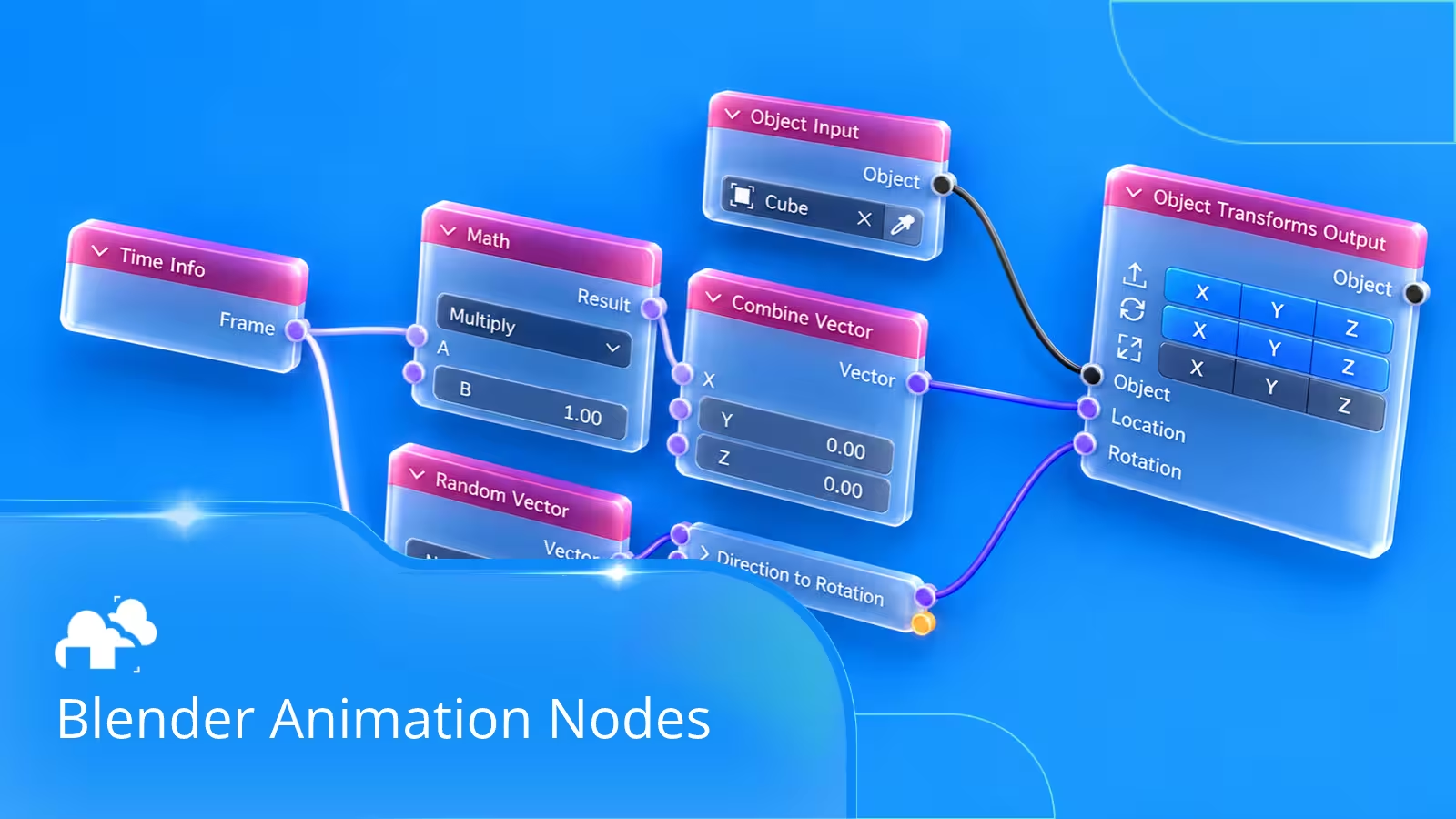
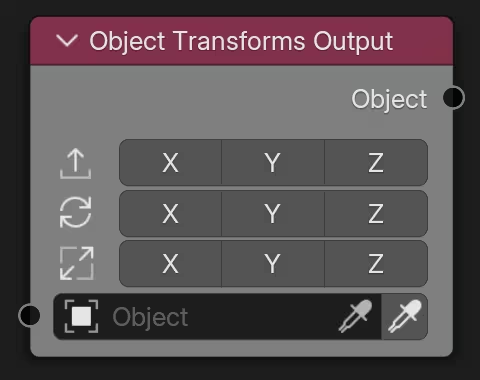
For example, a Time Info node can provide the current frame number, which can be converted into a changing position value. That value can then control an object's movement through an Object Transforms Output node. When the timeline advances, the object's position updates according to the connected nodes.
Animation Nodes vs traditional keyframe animation
Both methods can produce similar results, but they offer different ways of controlling movement.
These approaches can also complement each other. An artist might use keyframes for carefully directed camera movement while Animation Nodes controls the timing and movement of background objects.
How to install Animation Nodes in Blender
Animation Nodes is distributed separately from Blender, so it needs to be downloaded and installed before it can be used.
Downloading and enabling the add-on
- Visit the official Animation Nodes website at animation-nodes.com.
- Download the version compatible with your Blender installation and operating system.
- Open Blender and navigate to Edit > Preferences > Add-ons.
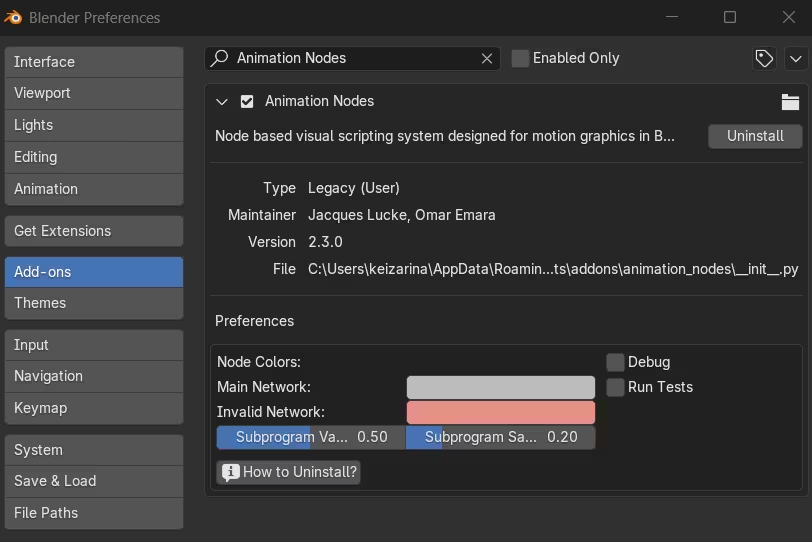
- Use the available installation option to select the downloaded add-on package.
- Enable Animation Nodes once it appears in the installed add-ons.
- Change an editor area's type to Animation Nodes to begin creating node networks.
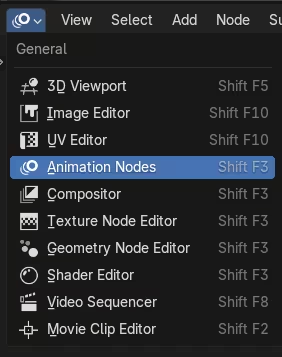
The exact installation interface can vary depending on the Blender version.
Checking Blender compatibility
Compatibility is especially important because Animation Nodes is maintained separately from Blender. In 2025, Blender released three major versions: Blender 4.4, Blender 4.5 LTS, and Blender 5.0. These releases introduced improvements to Blender's animation and production tools, but they do not automatically guarantee compatibility with third party add-ons.
The Animation Nodes website provides a stable v2.3 release for Blender 4.2 LTS, alongside development builds. Before installing, check the add-on's supported Blender version rather than assuming the latest download will work with your current setup.
Understanding the Animation Nodes editor
Once installed, the Animation Nodes editor becomes the main workspace for building animations. Similar to Blender's other node editors, it contains individual nodes connected by sockets that carry information between operations.
A node network can begin with a simple value, such as the current frame, and end with an output that changes an object's properties. More complex networks can contain multiple calculations and transformations, but the basic principle remains the same.
Essential Animation Nodes to know
Several nodes are particularly useful when getting started:
- Time Info: Provides timing information that can drive animation.
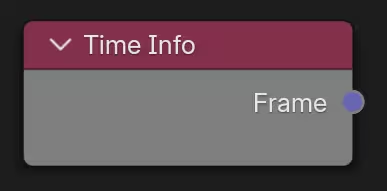
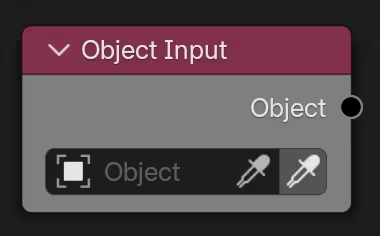
- Object Input: References an object in the Blender scene.
- Object Transforms Output: Controls an object's location, rotation, and scale.
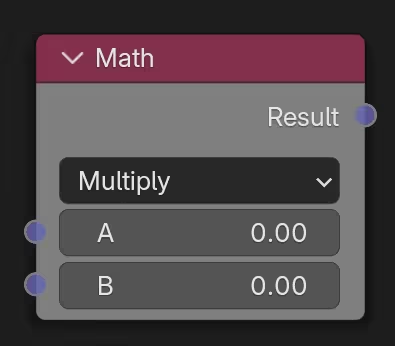
- Math: Performs calculations on numerical values.
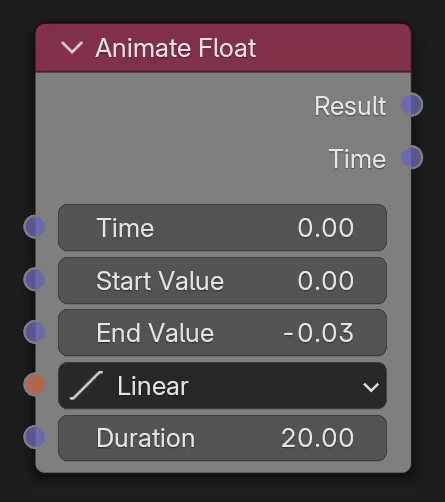
- Animate Float: Creates animated transitions between numerical values.
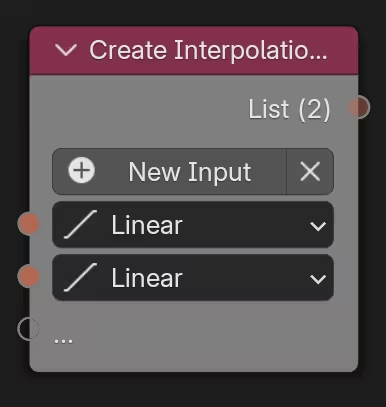
- Interpolation: Controls how smoothly values change during a transition.
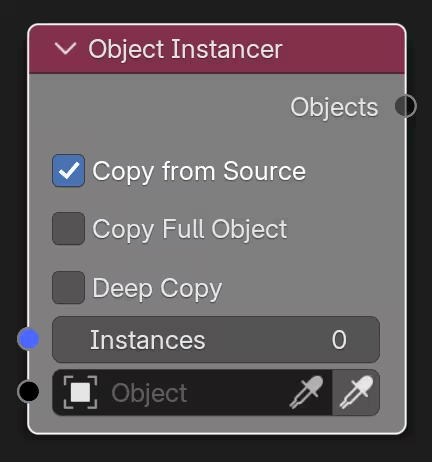
- Object Instancer: Creates and manages multiple object instances.
Learning how these nodes interact provides a foundation for building more involved animations.
How to animate with nodes in Blender
A simple object movement is a good starting point for understanding Animation Nodes. This example demonstrates how to connect an object to a node network and use time information to control its position.
Step 1: Create your object and node tree
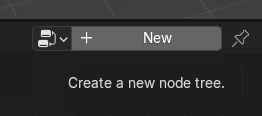
Open Blender and add a cube to the scene. Change one of the editor areas to the Animation Nodes editor and create a new node tree. The node tree is where the animation controls will be connected. Keep the initial setup simple so that each node's function is easy to understand.
Step 2: Connect the object to the animation network
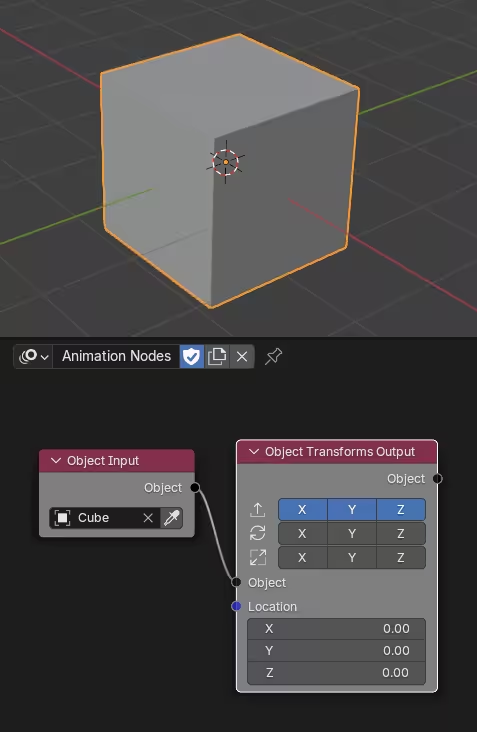
Add an Object Input node and select the cube. Next, add an Object Transforms Output node and connect the object's output to the appropriate object input. The Object Input node identifies which object will be controlled, while the output node allows the network to modify its transformations.
Step 3: Animate the object's movement
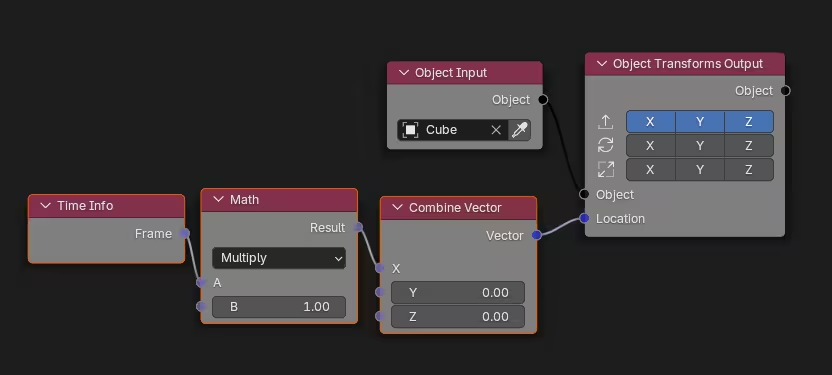
Add a Time Info node and use its Frame output as the starting value for movement. Connect it to a Math node set to Multiply, then use a Combine Vector node to place the calculated value on the X axis. Connect the resulting vector to the location input of Object Transforms Output. As the timeline advances, the cube should move along the X axis. Adjusting the multiplication value changes its speed.
Step 4: Add rotation and scaling
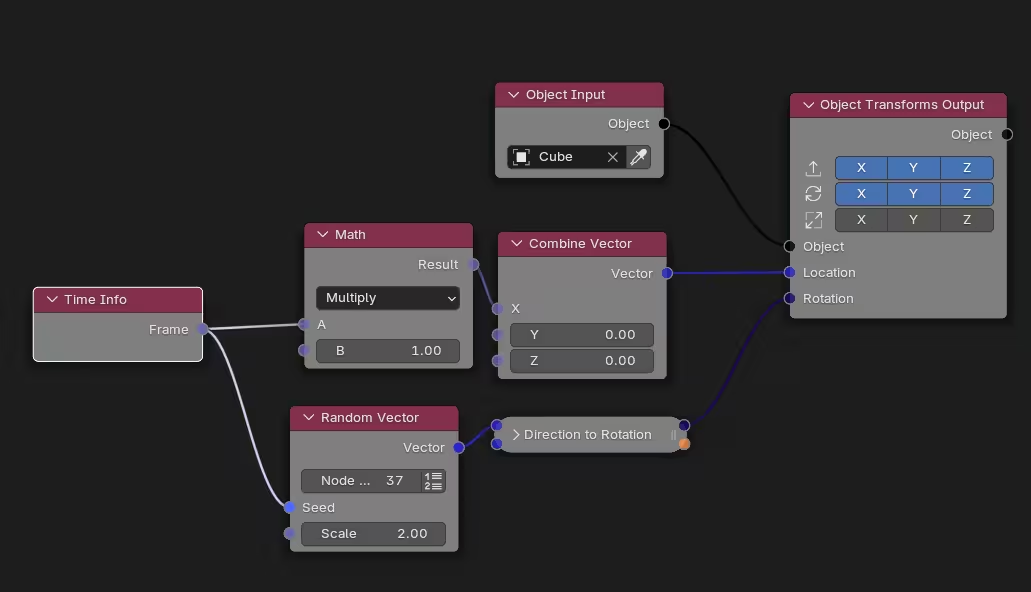
Once the cube moves correctly, experiment with additional transformation controls. A changing rotation value can make the cube spin, while an animated scale value can make it grow or shrink. Use suitable rotation and vector nodes to connect these values to the corresponding transformation inputs. You can also use interpolation nodes to create smoother transitions between different states.
Step 5: Preview and refine the animation
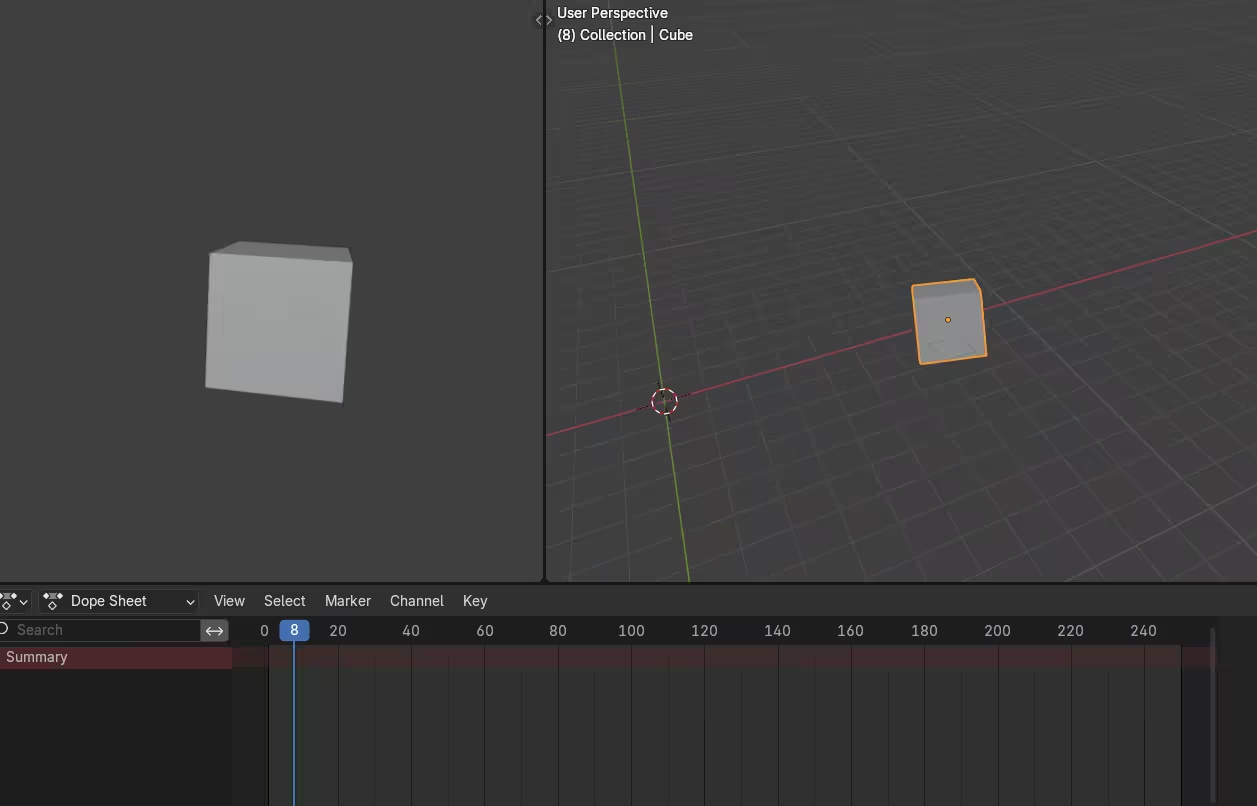
Play the timeline to see how the object responds. If the movement is too fast, reduce the numerical values controlling its position. If a transition feels too abrupt, adjust its interpolation. Experimenting with a small network makes it easier to understand how each connection affects the final animation before working with more objects.
Creative ways to use Blender Animation Nodes
Animation Nodes is especially useful for projects where several visual elements need to move together or respond to shared controls. Its applications range from simple animated graphics to elaborate commercial sequences.
Motion graphics and object animation
Motion graphics often involve geometric shapes, repeating transformations, and carefully coordinated timing. Animation Nodes allows artists to control these properties through connected operations, making it possible to animate groups of objects with shared settings.
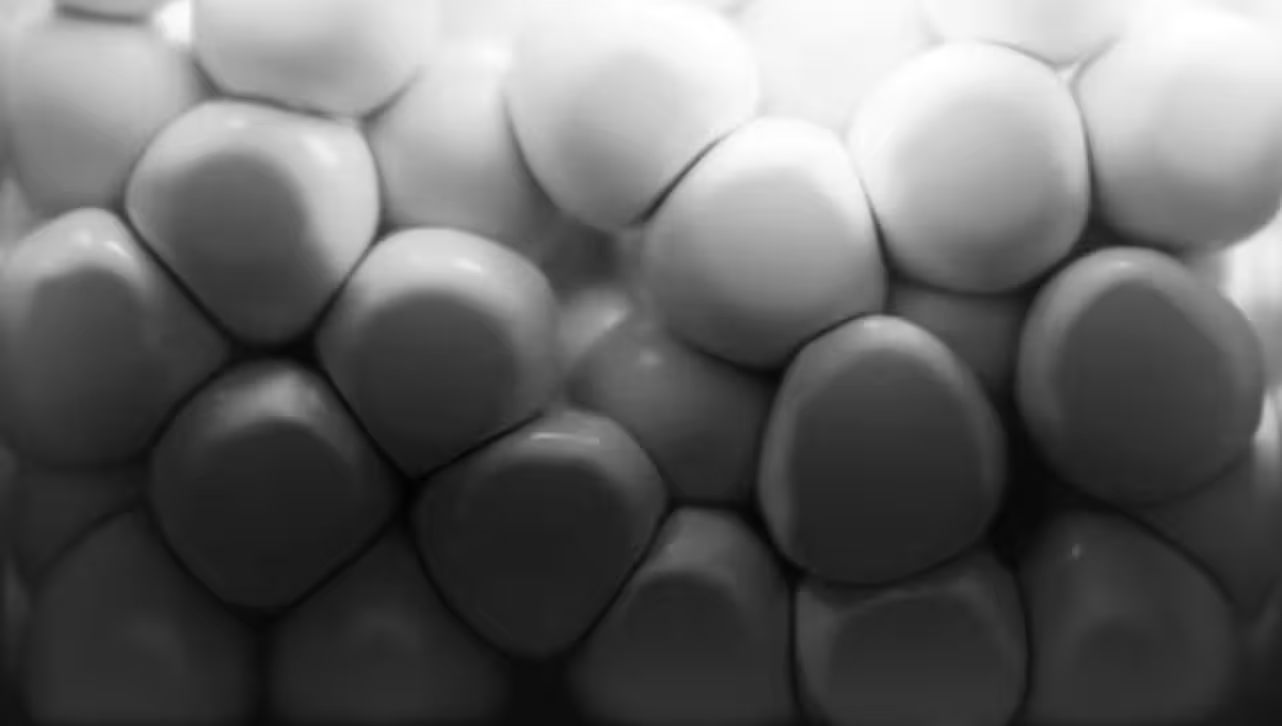
A relevant example of this type of work comes from Reatic Industry, featured in GarageFarm.NET's case study, A creative journey with Reatic Industry and GarageFarm.NET. Artist Joon Sang created a 3D motion graphics sequence for a subway billboard in which spherical objects appear to expand across the display, creating an illusion of depth.
"We envisioned the billboard as a glass window. Balls would fill the space, defying the typical boundaries of the screen, and then disappear into nothingness, captivating passersby." - Joon Sang
The project demonstrates the kind of coordinated motion and scale changes that artists can explore with Animation Nodes. Although the case study does not identify Animation Nodes as part of Reatic Industry's workflow, similar visual effects can be approached using its object transformation and timing controls.
Text animation
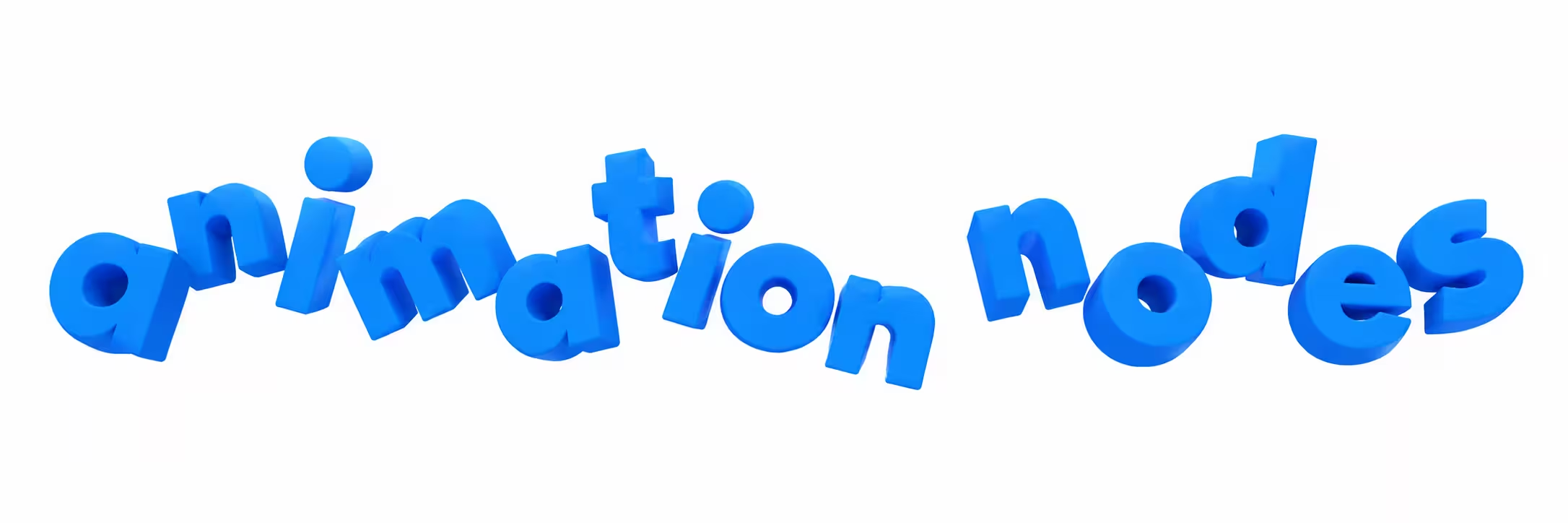
Animation Nodes also includes tools for working with text, allowing artists to create animated typography for promotional videos, titles, and motion graphics. For example, individual characters can be separated and given different positions or transformations. Their movement can then be controlled through animation values, allowing letters to appear, rotate, or move across the screen at different times.
Audio driven animation

Animation Nodes includes sound related functionality that can be used to connect audio information with visual elements. This makes it possible to create graphics that respond to sound, such as objects that expand with musical beats or visual patterns that change with audio intensity. These effects can be useful for music visualizers, promotional animations, and experimental motion graphics.
Combining Animation Nodes with traditional animation tools
Artists do not have to abandon Blender's existing animation features when using Animation Nodes. The add-on can work alongside keyframes and other animation controls, allowing each method to handle the parts of a scene where it is most useful.
Using keyframes with node controls
Keyframes can animate values that feed into an Animation Nodes network. For example, an artist could keyframe a control value to change the speed of several moving objects throughout a scene. This allows artists to coordinate animations through a shared system while still making precise timing adjustments when needed.
Improving animation timing
Animation Nodes provides interpolation tools for controlling things like transitions. An object might begin moving slowly, accelerate through the middle of the animation, and gradually come to a stop. Adjusting its interpolation can produce different styles of movement without changing the overall start and end positions.
Blender's Graph Editor can also refine animated properties that use keyframes and F curves, although values controlled directly by Animation Nodes are edited through the node network rather than automatically appearing as editable curves.
Managing Animation Nodes in larger projects
As node networks grow, organization becomes increasingly important. A scene with many animated objects can become difficult to manage if connections and controls are scattered across a large editor. Grouping related operations and using descriptive names makes it easier to identify the parts responsible for movement, timing, or object transformations. Testing smaller sections of an animation can also help identify errors before they affect the entire scene.
Rendering Animation Nodes with a render farm
Rendering becomes another consideration when an animation contains many objects, materials, and detailed visual effects. A render farm can distribute frames across multiple machines, reducing the amount of rendering that needs to happen on a local workstation.
GarageFarm.NET lists Animation Nodes among its supported Blender add-ons, with availability upon request. Before submitting a project, artists should confirm the required add-on version, test that the node networks evaluate correctly on the render farm, and render sample frames.
Common Animation Nodes problems and how to fix them
Beginners may encounter a few issues when building their first node networks. Most can be addressed by checking connections, settings, and compatibility.
- The object does not move: Check that Object Input references the correct object and that the transformation output receives the intended values.
- The animation does not update: Confirm that the node tree evaluates when the frame changes and that the required inputs are connected.
- The object moves unexpectedly: Review numerical calculations, vector components, and whether transformations are applied in local or world space.
- The animation looks too abrupt: Adjust interpolation settings to create smoother transitions.
- Blender cannot load the add-on: Check whether the Animation Nodes build is compatible with your Blender version and operating system.
- The animation renders incorrectly: Test several frames and confirm that Animation Nodes is available and functioning in the rendering environment.
Frequently asked questions about Blender Animation Nodes
- Is Animation Nodes built into Blender? No. Animation Nodes is a separate add-on that must be installed before use.
- Is Blender Animation Nodes free? Yes. Animation Nodes is a free, open source project.
- Can beginners learn Animation Nodes? Yes. Beginners can start with simple object transformations before exploring more advanced networks involving multiple objects and timing controls.
- Can Animation Nodes animate multiple objects? Yes. The add-on includes tools for controlling object collections, instances, and multiple transformations.
- Do you need to know Python to use Animation Nodes? No. Its visual scripting interface allows users to create animations by connecting nodes, although Python knowledge can be useful for more advanced customization.
- Does Animation Nodes work with the latest Blender version? Compatibility depends on the available add-on build. Check the official Animation Nodes download page for supported versions before installing.
Conclusion
Blender Animation Nodes provides a flexible way to create and manage animations through connected nodes. From simple object transformations to coordinated motion graphics and animated typography, the add-on gives artists another method for controlling movement and timing within their scenes.
Starting with basic nodes can help beginners understand how node networks work. As artists become more comfortable with the editor, they can explore more advanced animation controls and combine Animation Nodes with Blender's traditional tools to build creative and manageable animation workflows.
Register Now and Get $50 FREE Credits!