Key takeaways
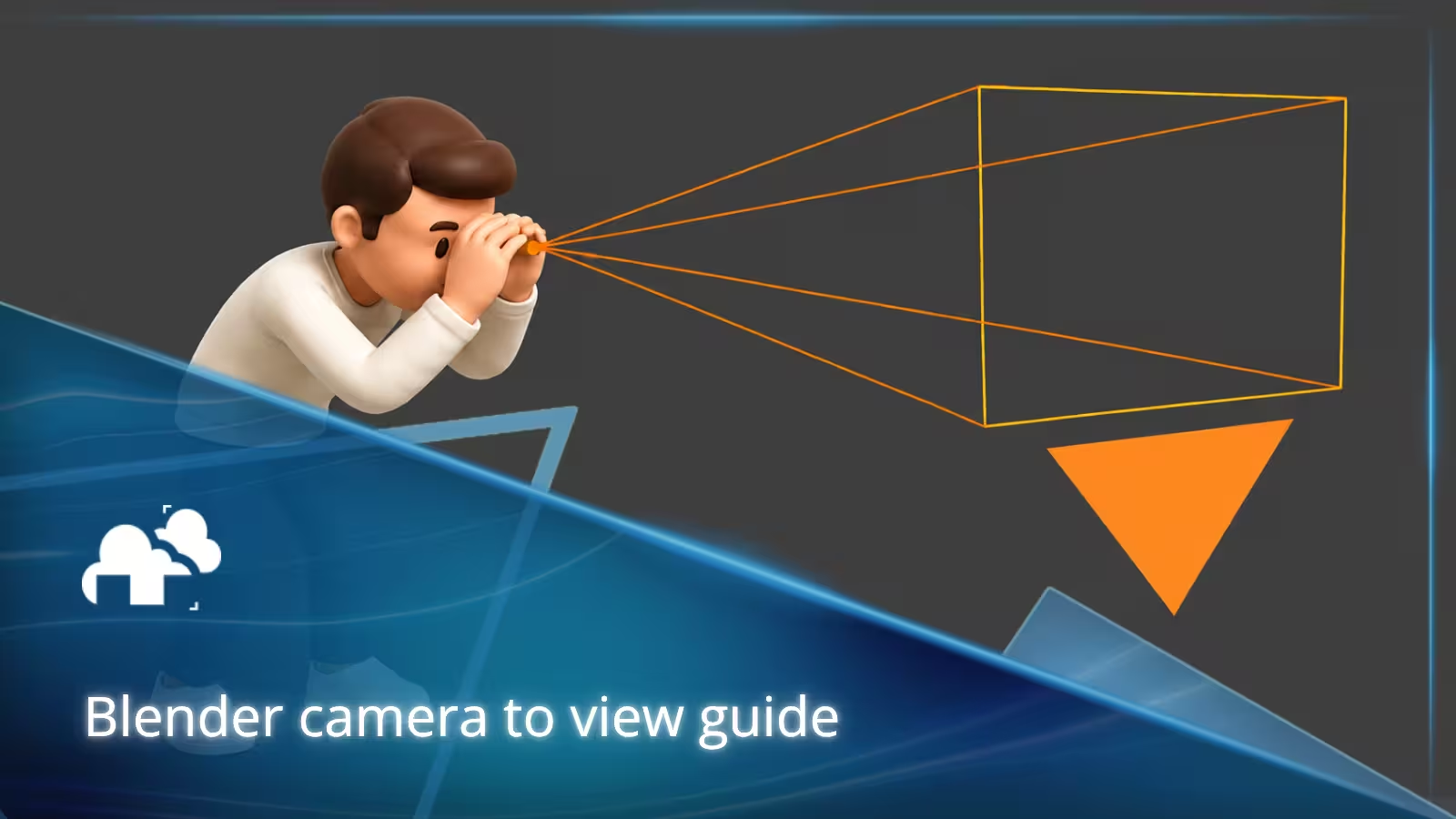
- Blender Camera to View lets you position and adjust a camera using the 3D viewport instead of relying only on manual location and rotation controls.
- To move the active camera to your current view, use View > Align View > Align Active Camera to View or press Ctrl + Alt + Numpad 0.
- Lock Camera to View is different. It lets you navigate the viewport while looking through the camera and have those movements update the camera position.
- Press Numpad 0 to switch to Camera View and see what the active camera will capture.
- If you do not have a numpad, the same camera commands are available through Blender's menus.
- For most scenes, a fast workflow is to find an approximate angle in the viewport, align the camera to that view, then use Lock Camera to View for finer adjustments.
TL;DR
If you want to move a Blender camera to your current view, position the viewport where you want the shot, then go to View > Align View > Align Active Camera to View. You can also use the Ctrl + Alt + Numpad 0 Blender camera shortcut.
To keep adjusting the shot from inside Camera View, press N to open the Sidebar, select the View tab, and enable Lock Camera to View under View Lock. Your normal viewport controls will then move the camera while you look through it.
These two features are related but different. Align Active Camera to View moves the camera to your current viewport once. Lock Camera to View lets you continue repositioning it through viewport navigation.
What is Blender camera to view?
When you work in Blender, the perspective you see in the 3D viewport is not necessarily what will appear in the final render. You can orbit around a model, zoom in, inspect it from above, or explore an environment without changing the camera at all.
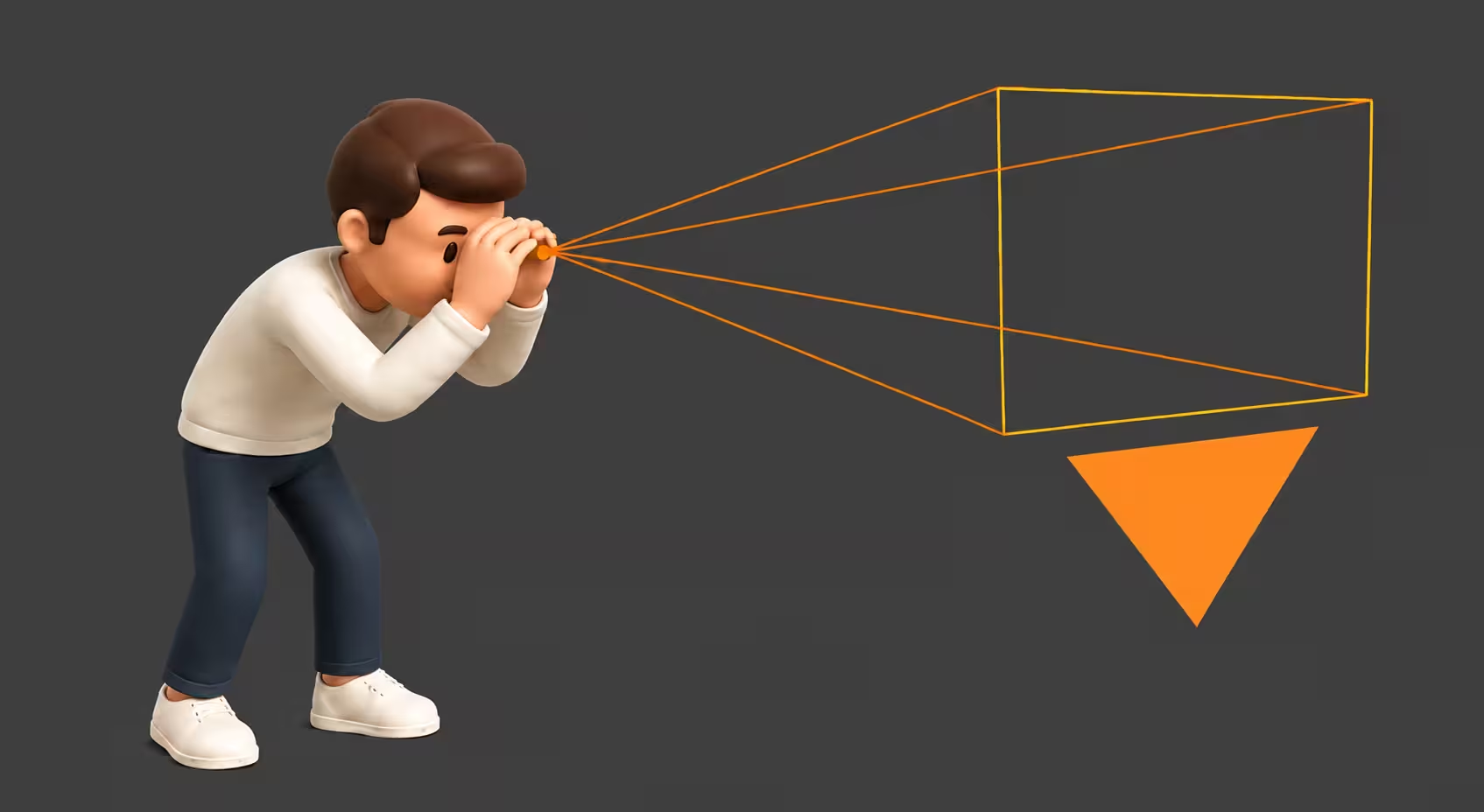
The camera determines what the final render sees.
This separation is useful while working, but it creates a common problem. You might find the perfect angle while navigating the viewport and then need to reproduce that exact view with the camera.
That is where Blender Camera to View becomes useful.
Instead of manually entering camera location and rotation values, you can set the camera to your current view. Blender moves the active camera so that its position and rotation match the viewport perspective you have already chosen.
You can then use Lock Camera to View if you want to continue refining the shot using familiar viewport controls.
Together, these tools provide one of the quickest ways to position a camera in Blender.
Why camera positioning matters
A great render is not only about materials, lighting, or modeling. Camera placement plays a major role in how viewers experience a scene.
Directing attention
Camera placement helps establish what viewers notice first.
A lower camera angle can make an object feel larger or more imposing, while a higher position can make the same subject appear smaller or reveal more of its surroundings.
Even small changes in camera rotation and position can alter which objects dominate the composition.
Creating depth
The relationship between foreground, subject, and background can make a scene feel much more dimensional.
Moving the camera closer to foreground objects can exaggerate depth, while a more distant camera position can flatten the relationship between elements. Focal length also affects how that depth is perceived.
Improving storytelling
For animation and cinematic work, the camera helps communicate mood, scale, and narrative.
A wide establishing shot can reveal an environment, while a closer camera position can draw attention to a character or important detail.
Camera positioning is therefore part of scene design, not simply something you do before pressing Render.
Understanding camera view in Blender
Before changing camera controls, it helps to understand the difference between the regular Blender camera viewport, Camera View, and the active camera.
Viewport navigation
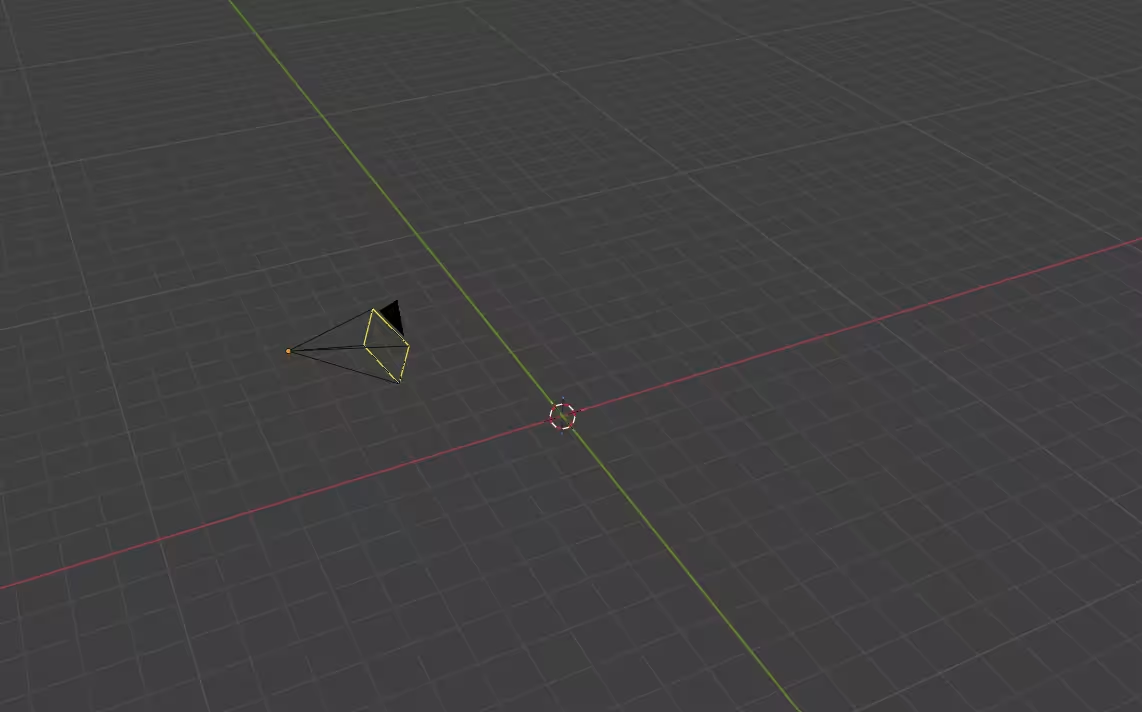
The 3D viewport is your main workspace for navigating a Blender scene.
Normally, orbiting, panning, and zooming change only your viewpoint inside the viewport. They do not move the scene camera.
This means you can inspect a model from any direction without changing what will eventually be rendered.
The distinction becomes important when you find a viewport angle you want to use as your final shot. Rather than manually recreating it with the camera, you can move the camera directly to that view.
Camera view
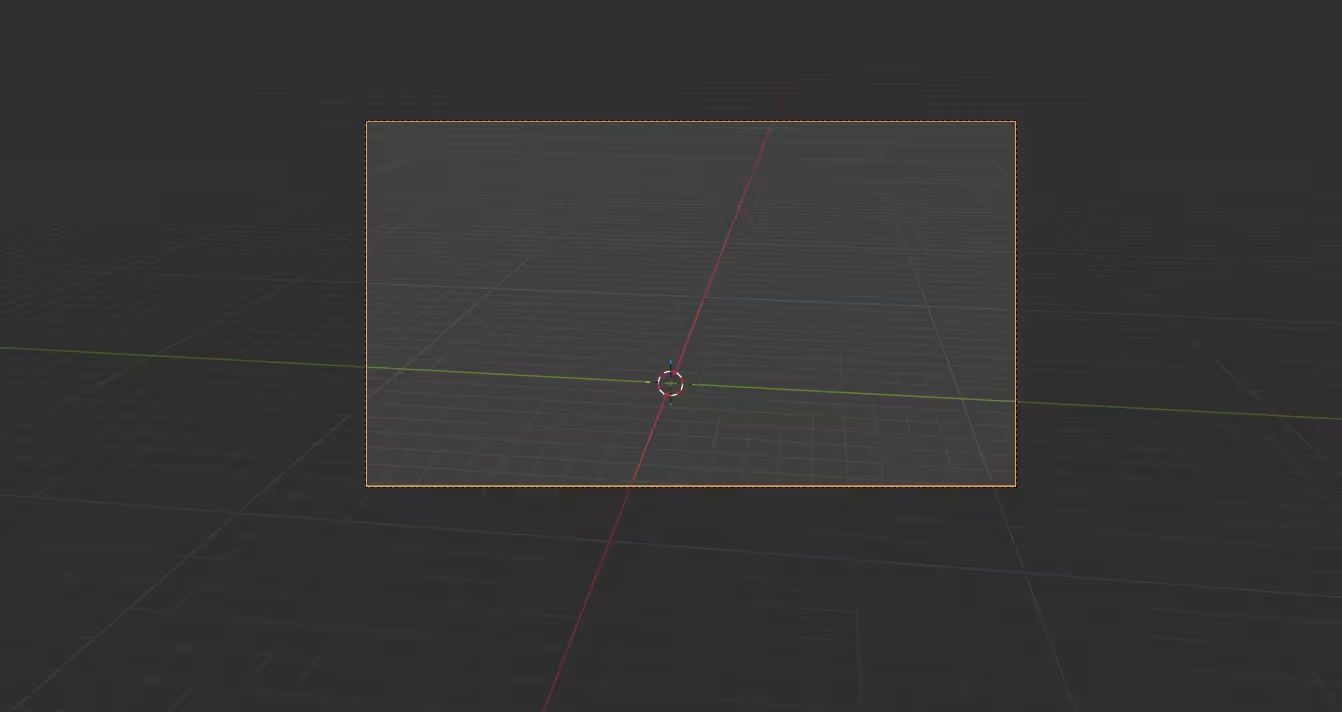
To view through the camera in Blender, press Numpad 0.
Camera View shows the scene from the perspective of the active camera. The camera frame indicates which part of the scene will appear in the render.
Press Numpad 0 again to exit Camera View.
If you are using a laptop or keyboard without a numpad, choose View > Cameras > Active Camera from the 3D Viewport menu instead.
This is an important distinction: entering Camera View does not automatically move the camera. It simply changes the viewport so you are looking through it.
Active camera
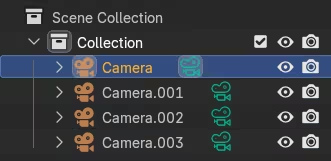
A Blender scene can contain several cameras, but only one is the active scene camera at a given point in time.
The active camera is the one used when you enter Camera View and, normally, the one Blender uses for rendering.
If you have multiple cameras and Blender is showing the wrong one, select the camera you want to use and press Ctrl + Numpad 0 to set it as the active camera.
You can also set the active camera through the scene's camera settings.
Being able to change the active camera in Blender is useful when comparing multiple compositions or working with scenes that require different camera angles.
How to enable camera to view
There are two closely related ways to work with Camera to View in Blender. Understanding the difference prevents a lot of confusion.
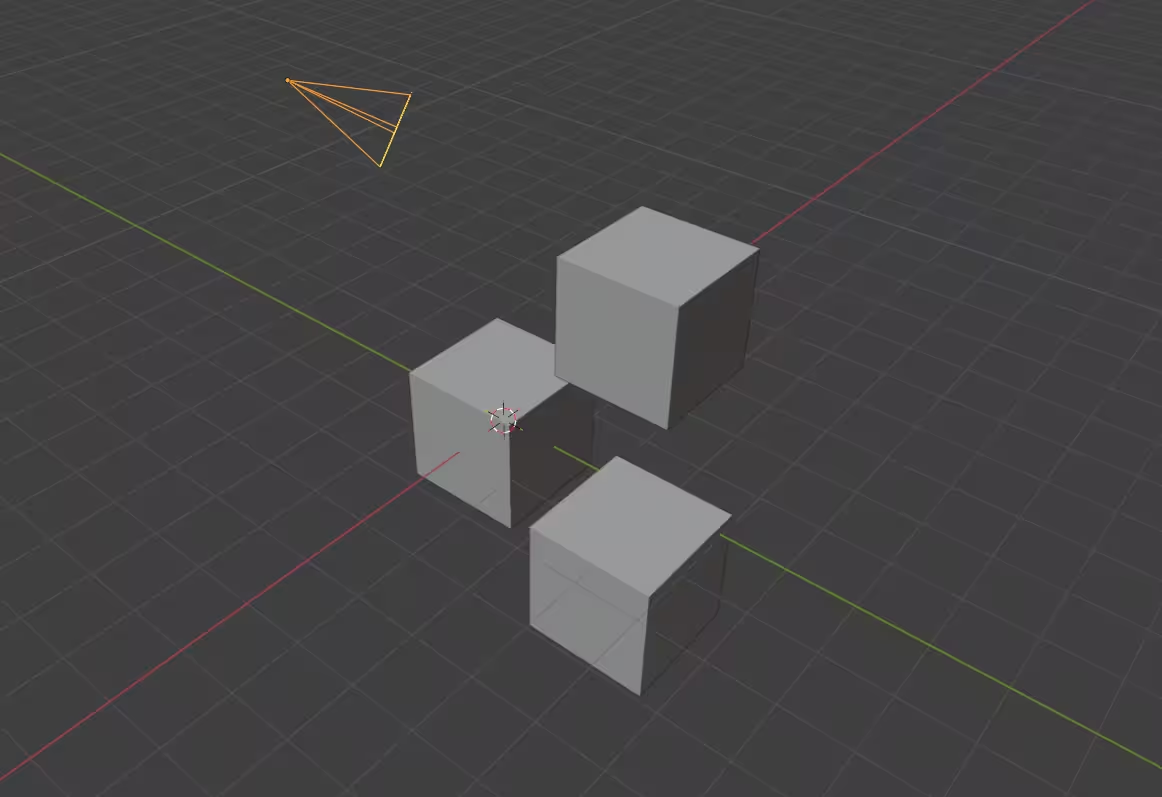
Then, go to View -> Align View -> Align Active Camera to View (or simply hit Ctrl Alt Numpad 0).
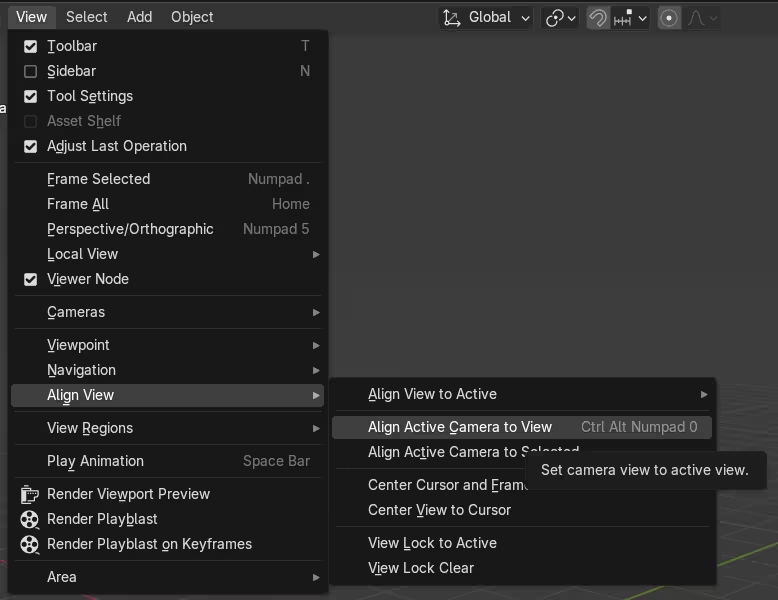
Once done, the camera automatically goes to your view and the viewport navigation controls begin moving the camera directly (as long as the camera is selected as an object). However, if you want to continue viewing through the camera’s view without having to select the camera object or messing up the view, press N to open the Sidebar, go to the View tab, and enable Lock Camera to View under View Lock.
Once Lock Camera to View is enabled, normal viewport navigation will move the active camera directly. Disable it after framing your shot to avoid accidental camera movement.
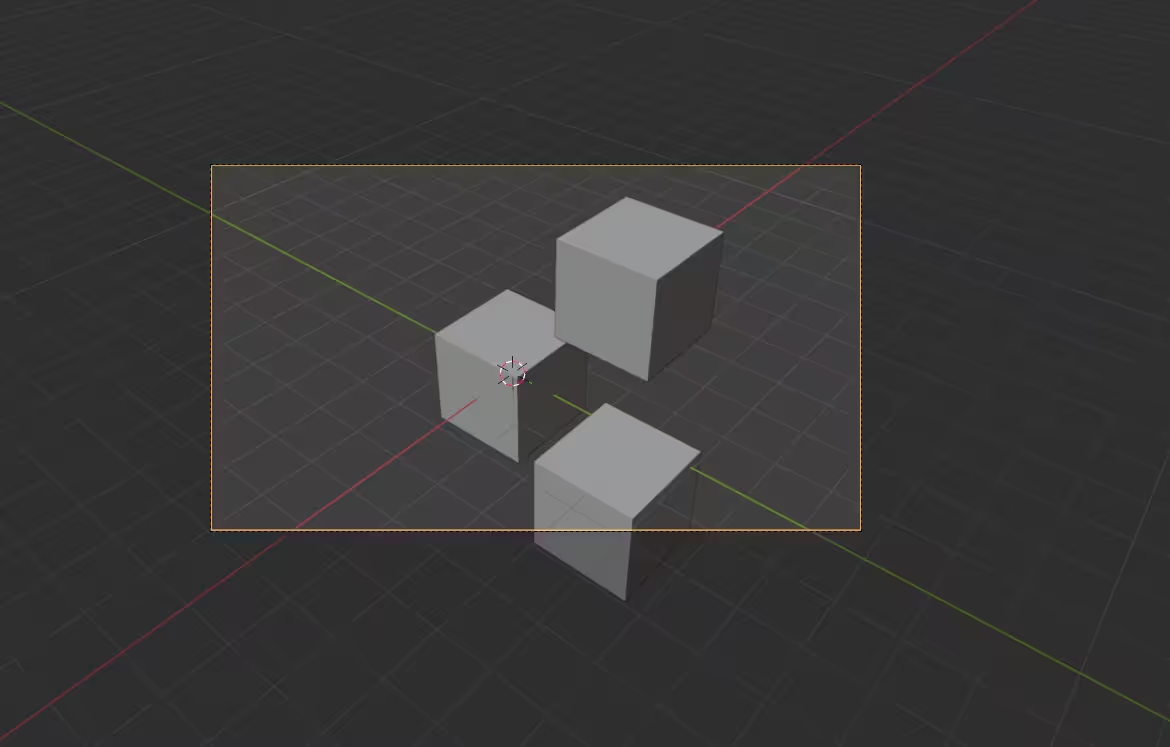
For most Blender users, the fastest workflow is to first use Align Active Camera to View to roughly frame the scene, then enable Lock Camera to View to fine-tune the composition without accidentally going to the viewport navigation. Once you're satisfied with the framing, disable Lock Camera to View to prevent accidental camera movement.
A practical workflow for production scenes
For production work, it usually makes more sense to find the rough composition in the viewport first rather than trying to position the camera numerically from the start. Once the angle is close, align the active camera to the current view and use Lock Camera to View only for final framing.
When the shot is approved, turn Lock Camera to View off and consider locking the camera's location and rotation. This prevents an easy mistake later in production: accidentally changing an approved camera while navigating the scene.
For shots that need exact, repeatable positioning, such as matching several product renders from the same angle, numerical camera transforms are still the better option.
Blender Camera to View shortcuts
These are the Blender camera shortcuts most useful when framing a scene:
Note: Lock Camera to View does not have a default keyboard shortcut. To enable it, press N to open the Sidebar, go to the View tab, and enable Lock Camera to View under View Lock.
Benefits of using camera to view
Faster composition
Manually positioning a camera can involve switching between the viewport, Camera View, and transform controls several times.
Camera to View shortens that process.
If you already see the composition you want in the viewport, you can simply set the camera to that view rather than trying to recreate it manually.
More natural camera controls
For many artists, navigating the viewport feels more natural than manipulating a camera object from outside it.
Lock Camera to View lets you use familiar Blender camera controls while seeing the final frame at the same time.
Instead of moving the camera and then checking the result, you see the framing change as you work.
Better iteration
Finding a good composition usually requires experimentation.
Camera to View makes it easy to test different positions, heights, rotations, and distances without interrupting the creative process.
This is particularly useful for product visualization, architectural scenes, environments, and still renders where several camera positions may need to be compared.
Easier viewport-to-camera workflow
One of the most useful aspects of the feature is how easily it connects viewport exploration with final camera placement.
You can freely explore a scene, find an interesting view, move the camera to that viewport, and continue refining it from Camera View.
There is no need to manually copy transform values or try to reproduce the same perspective.
Easier workflow recording
I made a FREE Blender add-on that records amazing time-lapse videos by designersoup
Camera to view can also help when recording a Blender workflow, especially when using screen capture tools or viewport recording add-ons. Since the camera view shows a cleaner and more intentional frame, it becomes easier to demonstrate modeling, lighting, composition, or scene setup without constantly adjusting the viewport for the viewer.
Which Blender camera control should you use?
Camera to View is not always the best way to position a camera. The right method depends on what you are trying to do.
A useful rule is to use viewport alignment for speed and numerical transforms for precision. In many workflows, the two methods complement each other rather than replace one another.
Improving composition after framing
Getting the camera into position is only the first step. Once the main framing is established, several camera settings can help refine the image.
Focal length
Camera Focal Length & Dynamic Zoom | Quick & Easy Technique On Camera Focus | Blender Eevee & Cycles - by 5 Minutes Blender
Focal length changes both the field of view and the way perspective feels.
A shorter focal length captures a wider area and tends to exaggerate perspective. A longer focal length creates a narrower field of view and can make distances between objects appear more compressed.
If the camera position looks right but the shot still feels too wide or too tight, adjusting focal length may work better than simply moving the camera forward or backward.
Depth of field
Learn Depth of Field in Blender! - by BlenderVitals
Depth of field controls which parts of the scene appear sharp and which fall out of focus.
Used carefully, it can help separate a subject from its background and guide attention toward important details.
Camera positioning should normally be established first. Depth of field can then be adjusted once you know where the subject sits within the final frame.
Composition guides
Camera Composition Overlays in Blender by blender 52
Blender's camera guides can help you refine framing once the camera is in place.
Select the camera and look for its composition guides and overlays. Depending on the Blender version and settings, these can include guides such as thirds, center lines, diagonals, golden ratio, and other framing references.
For example, a rule of thirds camera guide can help place an important subject away from the exact center of the image while maintaining visual balance.
These guides do not affect the render. They are simply references for composition.
Troubleshooting common issues
Many apparent camera problems come down to a few simple settings. Before changing anything else, check:
- Are you looking through the correct active camera?
- Is Lock Camera to View enabled or disabled?
- Are the camera's location or rotation transforms locked?
- Are you changing the viewport or the camera itself?
- Is the camera animated on the current frame?
Checking these first can save time because several different camera problems can produce very similar symptoms.
Why can't I move my camera in Blender?
If you can't move the camera in Blender, first check how you are trying to move it.
Entering Camera View with Numpad 0 does not automatically make viewport navigation move the camera.
To adjust the camera from Camera View, either select the camera and use normal transform controls or enable Lock Camera to View.
If you are trying to move the camera object directly, make sure it is selected and that its transforms have not been locked.
The wrong camera is moving
If the scene contains multiple cameras, check which camera is active.
Select the camera you want to use and press Ctrl + Numpad 0 to make it active. Then enter Camera View and confirm that you are looking through the correct camera before making changes.
Ctrl + Alt + Numpad 0 is not working
If the Blender Camera to View shortcut is not working, there are several things to check.
Make sure your mouse pointer is over the 3D Viewport when you press the shortcut.
On some laptops, the keyboard may not have a dedicated numpad or may require an additional function key.
You do not need the shortcut to use the feature. Go to:
View > Align View > Align Active Camera to View
This provides the same command without a numpad.
How do I use Camera View without a numpad?
If your keyboard does not have a numpad, use Blender's menus instead of Numpad 0.
To switch to Camera View, use:
View > Cameras > Active Camera
To align the camera with your current viewport, use:
View > Align View > Align Active Camera to View
You can also configure Emulate Numpad in Blender's input preferences if that suits your workflow.
Navigation feels too sensitive
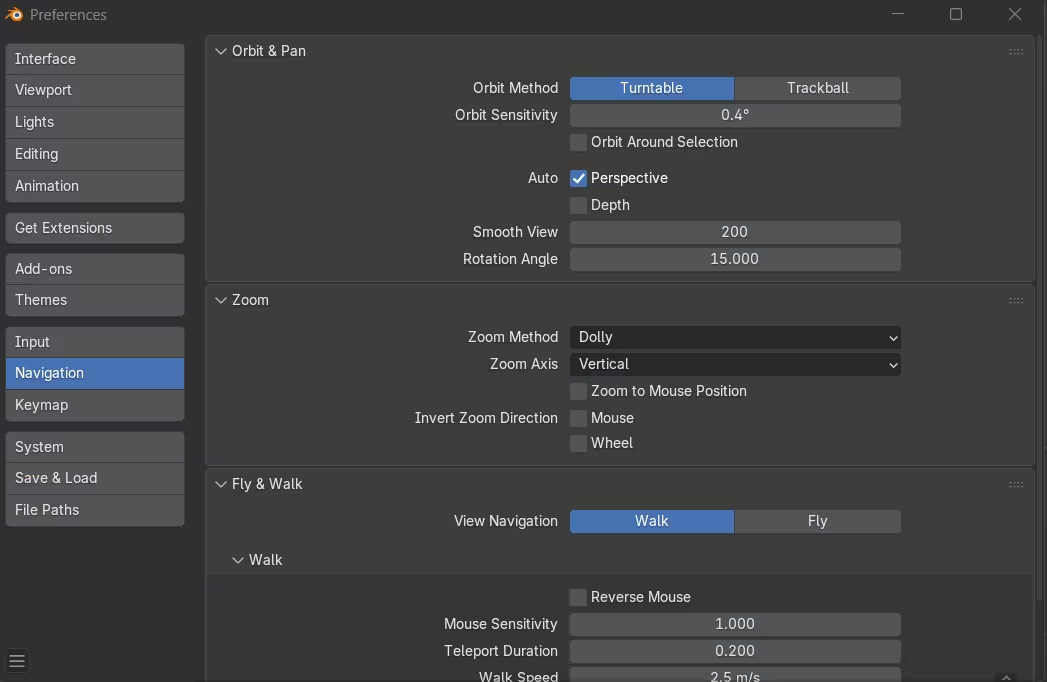
When Lock Camera to View is enabled, normal navigation directly changes the camera.
If movements feel too large, slow down and make smaller navigation adjustments. Blender's navigation preferences can also be adjusted if your normal viewport controls feel overly sensitive.
For precise changes, you can switch back to manual camera transforms and edit location or rotation numerically.
The composition keeps changing accidentally
How to Lock Camera to View in Blender - by RenderHub
This usually happens because Lock Camera to View is still enabled.
Once you are happy with the shot, disable it before continuing to navigate around the scene.
For important or approved cameras, you can also lock the camera's transforms to reduce the chance of accidentally changing its position.
Camera View does not match the viewport
This is normal unless you have aligned the camera with the viewport.
Your regular 3D viewport and the active camera are independent. Navigating outside Camera View does not move the camera.
If you want the camera to match what you currently see, use Align Active Camera to View.
The render looks different from Camera View
First check that the camera you are viewing through is still the active scene camera.
Also check whether the camera or other scene properties are animated, particularly if you are rendering a different frame from the one you inspected.
Render borders, resolution settings, visibility settings, and scene changes between frames can also create differences between what you expected from Camera View and the final result.
Alternative ways to position cameras
Camera to View is fast, but it is not the only way to control a Blender camera.
Manual transforms
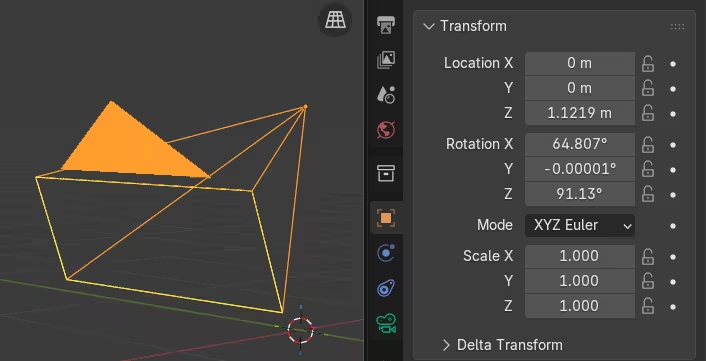
For exact positioning, select the camera and use Blender's normal transform tools.
Press G to move the camera and R to change the camera rotation. You can constrain either operation to an axis when necessary.
For even greater precision, use the Transform panel and enter exact location and rotation values.
Manual transforms are particularly useful when a project requires repeatable or technically precise camera placement.
Blender Walk Navigation
Blender - Move With WASD Viewport Camera Controls - by Quick Tech Tips
Blender's Walk Navigation provides another way to explore a scene.
Go to:
View > Navigation > Walk Navigation
or use the relevant navigation shortcut for your keymap.
Walk Navigation allows you to move through the scene using controls similar to a first-person game. This can be especially useful in architectural interiors and large environments.
If you prefer WASD-style camera controls in Blender, you can use Walk Navigation to find a position in the viewport, then align the active camera to that view.
You can also enter Camera View and combine navigation methods when appropriate for the shot.
Fly Navigation
Blender also provides Fly Navigation, which offers a more free-moving way to travel through 3D space.
It can be useful when exploring large scenes or searching for camera positions where traditional orbit controls feel restrictive.
Once you find the view you want, use Align Active Camera to View to save that perspective to the active camera.
Camera constraints
Blender Camera Constraints - by Immersive Limit
Constraints are useful when camera behavior needs to be controlled automatically rather than positioned manually.
For example, a camera can track an object as it moves through an animation.
For more complex animated camera movement, rigs, constraints, and cinematic camera techniques are generally better handled as part of a dedicated camera animation workflow rather than Camera to View.
Camera workflow tips
Save multiple camera angles
If you find several promising views, consider creating multiple cameras instead of repeatedly replacing one position.
You can then switch between cameras in Blender and compare compositions without losing earlier options.
Give each camera a clear name so it is easy to identify in larger scenes.
Set the correct active camera
When several cameras exist, always confirm which one is active before rendering.
Select the camera you want and use Ctrl + Numpad 0 to set it as the active camera.
This simple check can prevent rendering a scene from the wrong viewpoint.
Lock finished cameras
Once a camera has been approved, protect it from accidental changes.
At minimum, disable Lock Camera to View. For important shots, locking the camera's transform channels can provide additional protection.
Preview before rendering
Check the final scene from Camera View before starting a full render.
Look for objects entering the edge of the frame, unwanted empty space, incorrect camera selection, clipping, or composition changes that may have happened while editing the scene.
A short check can prevent an unnecessary rerender.
Once the camera angle and scene are ready, rendering can become the next bottleneck. Complex Blender scenes, high-resolution images, and animation sequences can take substantial time on local hardware. For larger workloads, a Blender render farm can process frames using remote rendering resources while you continue working locally.
A quick camera check before rendering
Before committing a Blender scene to a long render, it is worth checking the camera separately from the rest of the scene. A simple pre-render check can include:
Active camera → framing → resolution/aspect ratio → clipping → object visibility → animation → test frame
Start by confirming that Blender is using the intended active camera. Check the edges of the frame for objects that should not be visible, then verify the output resolution and aspect ratio because a different aspect ratio can change the effective composition.
If objects disappear unexpectedly, check the camera's clipping range. For animated scenes, scrub through several frames to make sure the camera position, constraints, and visible objects behave as expected throughout the shot.
Finally, render a representative test frame before committing to the full-resolution image or animation. This is especially useful before sending a scene to a render farm, where discovering a camera or framing mistake after multiple frames have rendered wastes both time and rendering resources.
Keep composition simple
More camera movement does not automatically produce a stronger image.
Clear subject placement, readable depth, and intentional framing are often more effective than extreme angles. Use Blender's camera controls to support the scene rather than distract from it.
Quick FAQs while viewing through the camera
How do I move the camera to my current view in Blender?
Navigate to the view you want in the 3D viewport, then press Ctrl + Alt + Numpad 0. You can also choose View > Align View > Align Active Camera to View.
This moves the active camera to match your current viewport.
How do I set the camera to the current view without a numpad?
Use View > Align View > Align Active Camera to View.
The menu command performs the same action as Ctrl + Alt + Numpad 0.
How do I switch to Camera View in Blender?
Press Numpad 0 to enter or exit Camera View.
Without a numpad, use View > Cameras > Active Camera.
How do I lock the camera to the view in Blender?
Enter Camera View, press N to open the Sidebar, select the View tab, and enable Lock Camera to View under View Lock.
Viewport navigation will then reposition the camera while you remain in Camera View.
Why can't I move my camera in Blender?
Simply entering Camera View does not lock the camera to viewport navigation. Enable Lock Camera to View, or select the camera and use its normal transform controls.
Also check whether the camera's location or rotation transforms have been locked.
Why is my camera moving instead of the viewport?
Lock Camera to View is probably enabled.
When this option is active in Camera View, navigating the viewport changes the camera itself.
Disable Lock Camera to View when you want to navigate without changing your shot.
How do I reset Camera View in Blender?
If you accidentally moved the camera, use Ctrl + Z immediately to undo the change.
If you need to restore a specific saved position later, having a duplicate camera or known transform values is more reliable than trying to manually recreate the previous view.
How do I change the active camera in Blender?
Select the camera you want to use and press Ctrl + Numpad 0.
This sets the selected camera as the active camera and switches the viewport to its view.
Can I use WASD to move around a Blender scene?
Yes. Blender's Walk Navigation provides WASD-style movement through the viewport.
This can be useful for exploring environments. Once you find the view you want, align the active camera to that viewport.
What's the difference between Align Camera to View and Lock Camera to View?
Align Active Camera to View moves the active camera once so it matches your current 3D viewport.
Lock Camera to View changes how navigation works while you are looking through the camera. With it enabled, viewport navigation updates the camera's position.
A useful workflow is to align the camera first, then enable Lock Camera to View for fine adjustments.
Conclusion
Blender Camera to View is a simple feature, but it can make camera positioning considerably faster.
Instead of manually trying to reproduce a perspective you have already found in the viewport, you can move the camera to your current view, switch into Camera View, and use Lock Camera to View to refine the framing.
The most useful commands to remember are Numpad 0 for Camera View, Ctrl + Alt + Numpad 0 to align the active camera with the current viewport, and Ctrl + Numpad 0 to set a selected camera as active.
Once those controls become familiar, moving between the Blender camera viewport and the final camera view becomes a much more natural part of scene setup. Whether you are working on a still image, product visualization, architectural scene, or animation, the result is the same: less time fighting with camera placement and more time refining the shot.
Register Now and Get $50 FREE Credits!